Använd kundfakturering när ett företag eller en gäst ska betala i efterhand. I Karma förbereder du mottagaren, tar emot en fakturabetalning i kassan, granskar utkastet, skickar fakturan via e-post eller Fortnox och följer den tills den är betald.
Letar du efter fakturor från Karma till ditt företag? Se Hitta Karmas fakturor och förstå avgifter.
Se genomgången på 2½ minut, eller följ stegen nedan.
Innan du börjar
Kontrollera att:
- du arbetar på rätt plats;
- personalen som tar emot fakturabetalningar kan använda kassan och att fakturamottagaren redan finns;
- fakturanummerprefix, betalningsvillkor, avsändaruppgifter, betalningsuppgifter och PDF-texter stämmer; och
- mottagaren har en giltig e-postadress om Karma ska skicka fakturan via e-post.
Platsens standardinställningar hittar du under Inställningar → Betalning & Utbetalning → Faktura. Karma kan be dig bekräfta din identitet innan finansiella inställningar visas. Kontrollera:
- Fakturanummerprefix och Betalningsvillkor (dagar);
- vilka mottagarfält som är obligatoriska;
- om en referens i kassan är valfri, obligatorisk eller måste väljas bland sparade referenser;
- om fakturaköp ska registreras i det anslutna kassaregistret;
- avsändarens namn, kontaktuppgifter, logotyp och adress;
- bankkonto, IBAN, SWIFT/BIC och betalningsreferens; och
- villkor och sidfot på fakturans PDF.
Fakturans valuta hämtas från platsens inställningar. Välj Spara inställningar när du har gjort ändringar.
Lägg till en fakturamottagare
- Öppna Betalningar → Fakturor.
- Välj fliken Mottagare och sedan Lägg till.
- Fyll i kontaktnamn, e-post, organisationsuppgifter, momsnummer, telefonnummer, land och faktureringsadress enligt platsens krav.
- Spara mottagaren.
- Öppna mottagaren och lägg till återanvändbara Referenser, till exempel ett inköpsordernummer, kostnadsställe eller en avdelning. Varje referens samlar sina köp på en egen faktura.
- Om fakturaköp ska kopplas till mottagaren automatiskt väljer du Redigera → Betalningsregler. En regel kan matcha en exakt e-postadress, en e-postdomän eller ett användar-ID i Karma. Du kan också koppla en gäst från mottagarsidan.
Lägg bara till en bred regel för en e-postdomän när alla gäster som matchar hör till samma fakturamottagare.
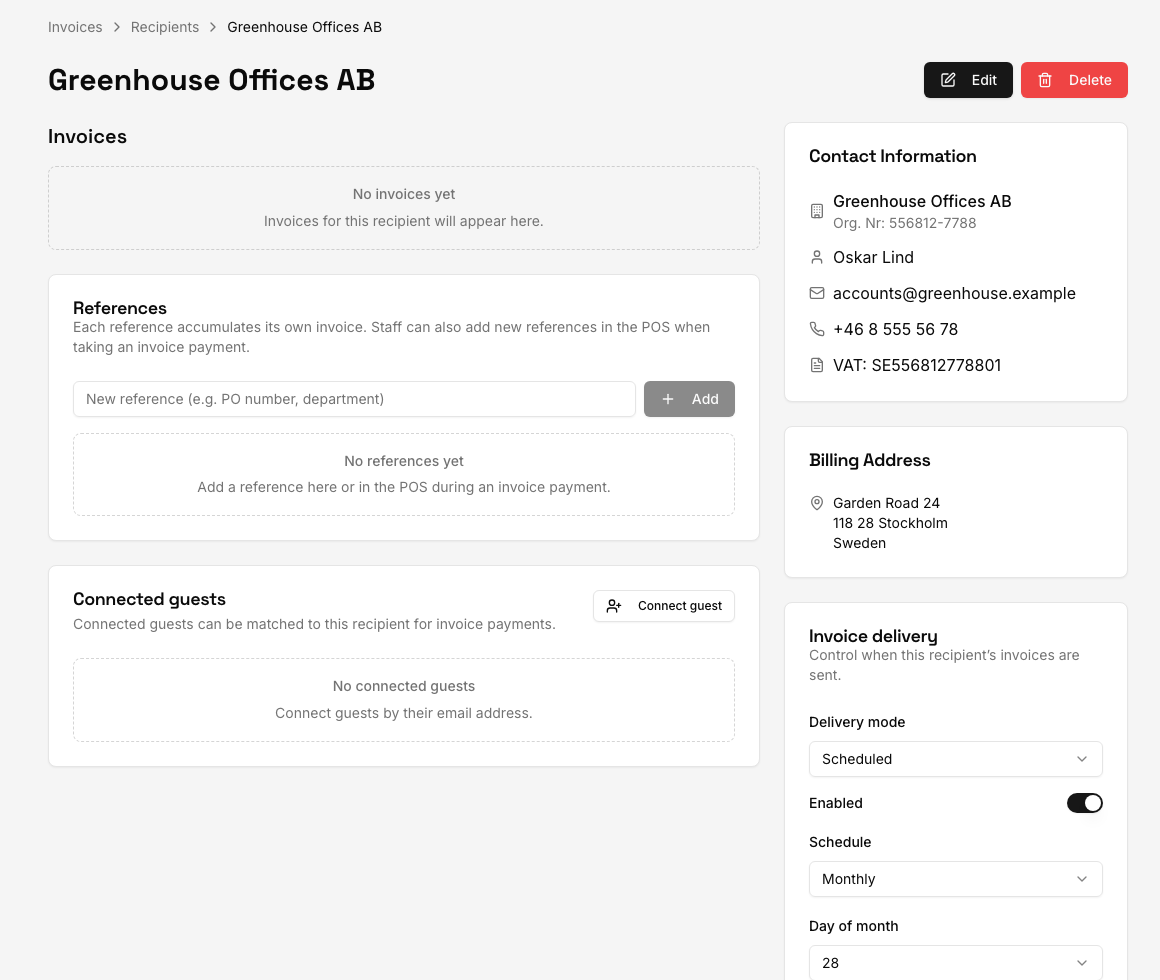
Välj när mottagarens fakturor skickas
Öppna mottagaren och scrolla till Fakturaleverans. Välj ett läge:
- Manuell behåller nya fakturor som utkast tills någon granskar och skickar dem.
- Skicka direkt skickar varje faktura till mottagaren så snart den har skapats (till Fortnox i stället, om fakturor skickas via Fortnox).
- Schemalagd skickar de samlade fakturautkasten varje vecka, varje månad eller med ett valt antal dagars mellanrum.
För en schemalagd mottagare aktiverar du schemat och kontrollerar intervallet och nästa utskick innan verksamheten öppnar. Välj manuell leverans när ekonomiavdelningen behöver kontrollera köpen innan en faktura skickas.
För fakturabetalningar i kassan är det valet Skicka nu eller Lägg till i utkast i betalningsdialogen som avgör om fakturan skickas direkt. Se nästa avsnitt.
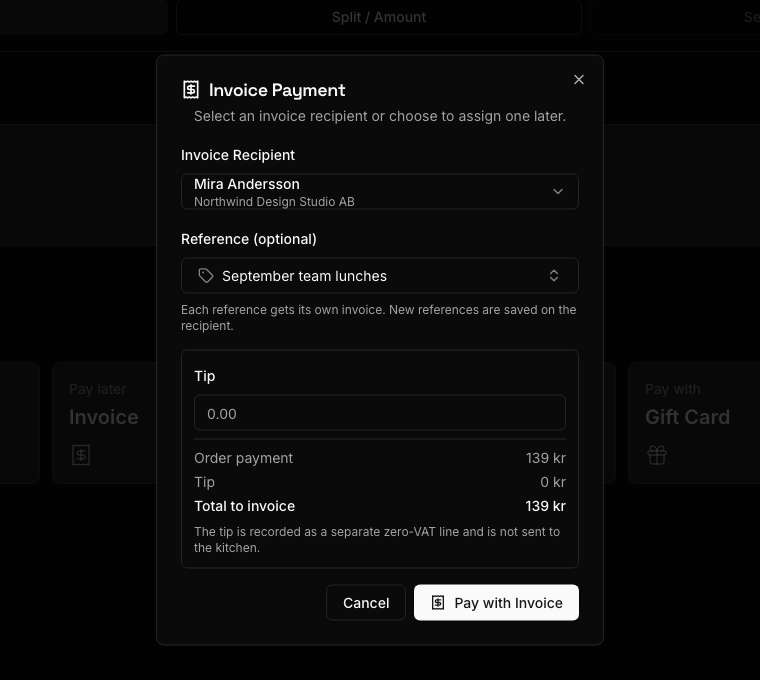
Ta emot en fakturabetalning i kassan
- Lägg upp beställningen i Kassa som vanligt.
- Välj Betala.
- Under Betala senare väljer du Faktura.
- Välj fakturamottagare. Du kan välja Välj mottagare senare bara när platsen inte kräver en referens i kassan. Köpet hamnar då under Ej fakturerade köp.
- Välj eller skriv en referens vid behov. En ny referens sparas på mottagaren för framtida betalningar.
- Välj Skicka nu för att skapa en separat faktura för köpet och skicka den direkt, eller Lägg till i utkast för att samla köpet med senare köp för samma mottagare och referens. Skicka nu är förvalt. När fakturor skickas via Fortnox väljer du också Skicka till Fortnox som Direktfaktura eller Order / inkorg.
- Kontrollera beloppet och eventuell dricks och välj sedan Betala med faktura.
Karma registrerar försäljningen. Med Skicka nu utfärdas fakturan direkt, via e-post eller till Fortnox. Med Lägg till i utkast läggs köpet till i mottagarens öppna utkast för referensen, som sedan skickas manuellt eller enligt mottagarens schema.
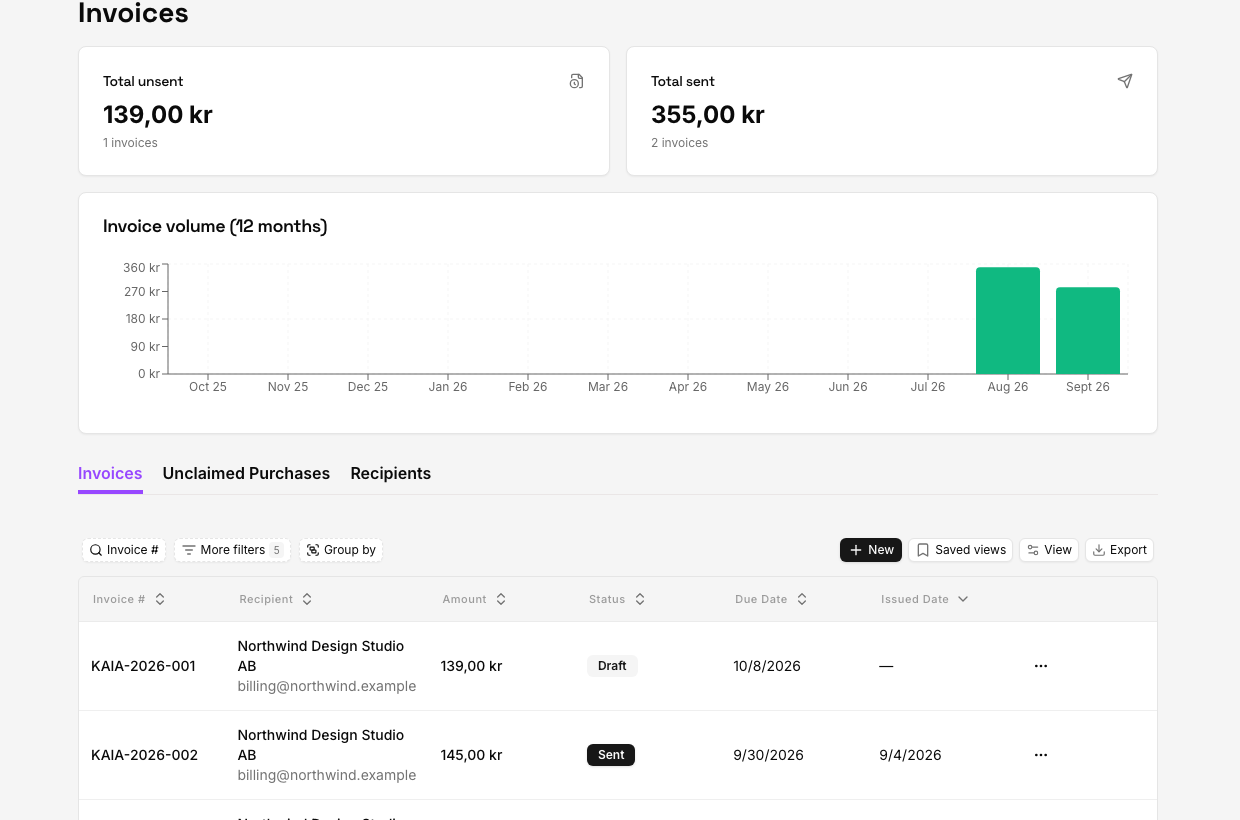
Skapa eller komplettera ett utkast manuellt
Du kan också skapa ett utkast från fakturasidan:
- Öppna Betalningar → Fakturor och välj Skapa.
- Välj mottagare, förfallodatum och eventuella anteckningar.
- Välj Skapa faktura.
- Öppna utkastet och lägg till köp som kan faktureras från Ej fakturerade köp.
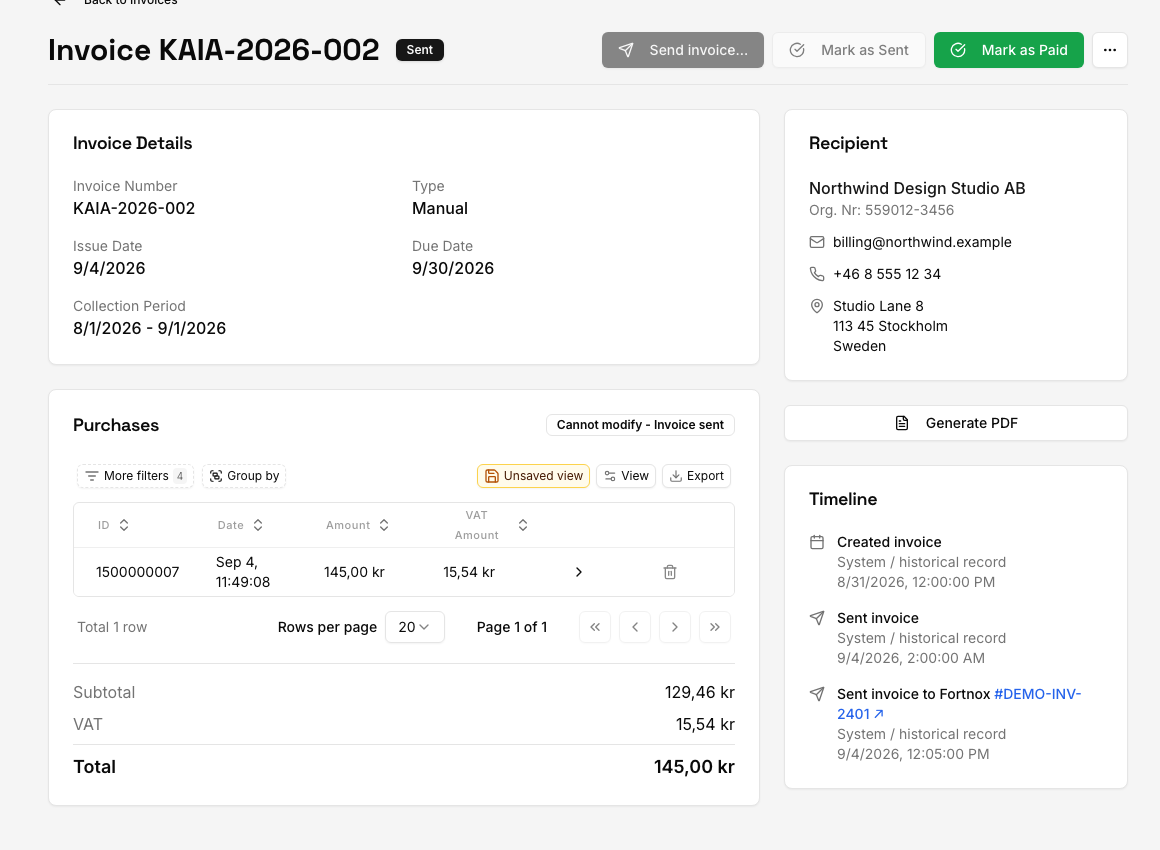
- Kontrollera insamlingsperiod, mottagare, referens, köp, delsumma, moms, totalbelopp och förfallodatum.
På fliken Ej fakturerade köp hittar du fakturaköp som fortfarande saknar mottagare eller faktura. Köp kan läggas till i eller tas bort från ett utkast, men de låses när fakturan har skickats.
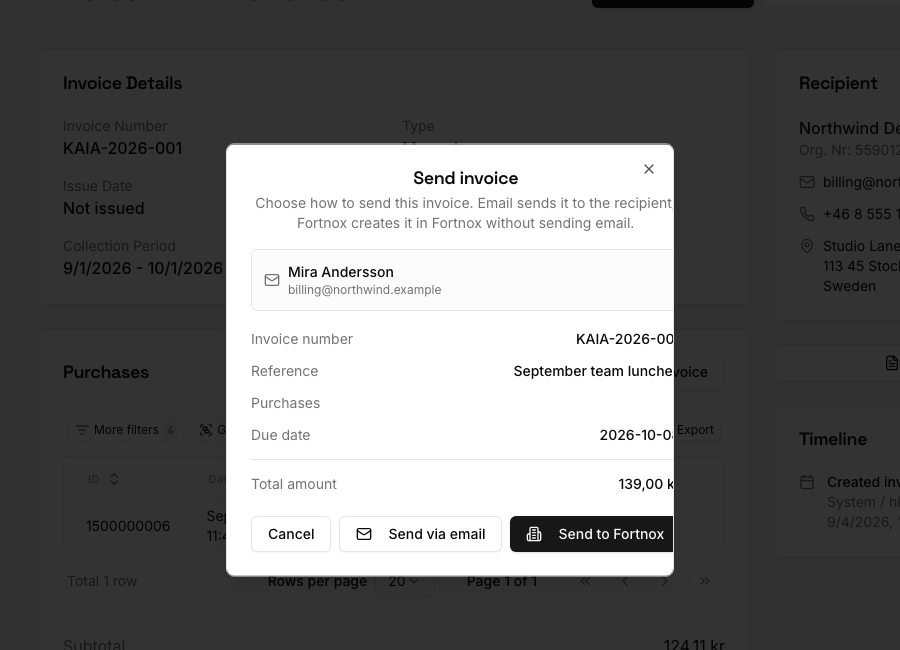
Skicka fakturan
Öppna det granskade utkastet och välj Skicka faktura…. Dialogen erbjuder ett leveranssätt, beroende på dina Fortnox-inställningar:
- Skicka via e-post utfärdar fakturan och mejlar den till mottagaren. Det här är åtgärden när Fortnox inte är anslutet eller inte hanterar fakturaleveransen.
- Skicka till Fortnox skapar den inställda fakturan eller ordern i Fortnox utan att Karma skickar något mejl. Det ersätter e-post när Fortnox är anslutet och Skicka fakturor via Fortnox är aktiverat.
Kreditfakturor skickas alltid via e-post. Se Anslut och verifiera Fortnox för inställningar och synkning.
Om fakturan har skickats utanför det här flödet använder du Markera som skickad för att uppdatera statusen utan att skicka den igen.
Följ upp, registrera betalning eller rätta en faktura
Fakturatabellen använder de här huvudstatusarna:
- Utkast eller Auto-utkast – kan fortfarande redigeras och har inte skickats.
- Skickad – utfärdad till mottagaren eller Fortnox; köpen är låsta.
- Betald – betalningen är registrerad.
- Förfallen – skickad och förfallodatumet har passerat utan registrerad betalning.
- Makulerad – avbruten innan den slutfördes.
Öppna en faktura för att:
- välja Markera som betald när betalningen är bekräftad;
- välja Generera PDF för att ladda ner en kopia;
- se Tidslinje för när fakturan skapades, skickades, betalades, makulerades eller skickades till Fortnox;
- öppna det länkade Fortnox-dokumentet när det finns; eller
- skapa en Kreditfaktura för en skickad faktura som behöver rättas.
Makulera eller ta bort bara ett utkast. Ändra inte historiska köp för att rätta en faktura som redan har skickats – skapa en kreditfaktura i stället.
Kontrollera att faktureringen fungerar
- Köpet syns på rätt mottagare och referens.
- Statusen utkast, skickad, betald eller förfallen stämmer med vad som faktiskt har hänt.
- PDF:en innehåller rätt avsändare, betalningsuppgifter, moms, villkor och mottagaruppgifter.
- Mottagaren har fått mejlet, om leverans via e-post valdes.
- Tidslinjen visar den förväntade händelsen och Fortnox-länken, när det är aktuellt.
Om något är fel
- Faktura saknas i kassan: kontrollera att mottagaren finns, att platsen tillåter fakturabetalningar och att beställningen kan betalas med den betalningsmetoden.
- Ett köp saknar faktura: öppna Betalningar → Fakturor → Ej fakturerade köp och lägg till det i rätt utkast.
- Fel mottagare eller referens: rätta utkastet innan du skickar det. Om fakturan redan har skickats krediterar du den och skapar en ny faktura.
- Mejlet skickades inte: när Fortnox är anslutet och Skicka fakturor via Fortnox är aktiverat skickar Karma fakturan till Fortnox i stället för att mejla den. Kontrollera annars mottagarens e-postadress.
- Köpen går inte att ändra: skickade och betalda fakturor är låsta. Använd en kreditfaktura för rättelser.
- Skicka till Fortnox visas inte: kontrollera att Fortnox är anslutet och att Skicka fakturor via Fortnox är aktiverat på integrationssidan. Anslut Fortnox på nytt om sidan ber om det.
När du kontaktar supporten, ange plats, fakturanummer, mottagare, köp-ID när det är relevant, förväntat resultat, faktiskt resultat och en skärmbild. Skicka aldrig bank- eller inloggningsuppgifter.