Använd Köksdisplay i Karma (KDS) för att ta emot beställningar och flytta dem framåt i realtid. Den här guiden går igenom bongarnas knappar, filter, alla fyra visningslägen och alla inställningar för displayen.
Se videogenomgången av hela konfigurationen av köksdisplayen, eller följ stegen nedan.
Innan du börjar
- Kontrollera att din roll har åtkomst till Köksdisplay.
- Öppna Karma på den enhet som ska användas som köksdisplay. De flesta KDS-inställningar sparas i webbläsaren, så kontrollera inställningarna på varje skärm.
- Ställ in prepgrupper eller servering (coursing) först om du vill att de valen ska finnas i KDS-inställningarna.
Öppna köksdisplayen
- Öppna Karma.
- Välj Köksdisplay i vänstermenyn.
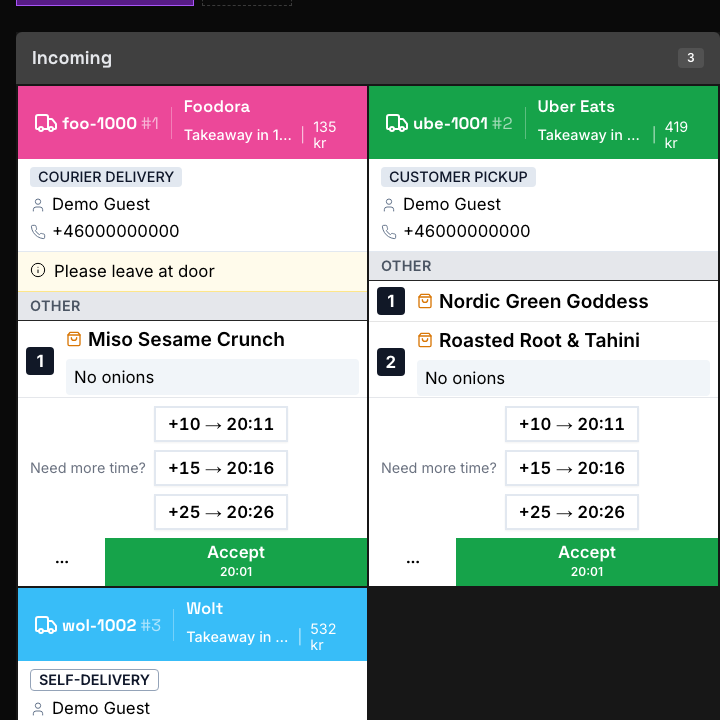
Nya bongar visas i Inkommande. Beroende på platsens arbetsflöde går de sedan vidare genom Schemalagda, Vänta, Pågående, Upphämtning och Klara.
Flytta en bong framåt
I läget Detaljerad eller Fokuserad:
- Kontrollera ordernummer, källa, tider, kommentarer, artiklar och modifieringar.
- Välj huvudknappen på bongen, till exempel Acceptera.
- Fortsätt med nästa åtgärd när tillagningen når nästa steg.
- Slutför bongen när beställningen har lämnat köket eller hämtats.
Bongen flyttas till nästa synliga kolumn efter varje lyckad åtgärd.
I läget Kompakt eller Mini flyttar du bongen framåt med ett kort tryck. Håll in för att öppna detaljerna utan att flytta den.
Använd knapparna i toppfältet
- Klocka: Slå på eller av notiser för nya beställningar. Webbläsaren kan be om tillåtelse. På iPhone och iPad behöver du lägga till Karma på hemskärmen och ha iOS 16.4 eller senare.
- Nål: Aktivera fästläget och välj sedan en bong för att hålla den först i sin kolumn. Välj nålen igen när du är klar.
- Helskärm: Låt köksdisplayen fylla hela skärmen. Knappen visas bara om webbläsaren stöder helskärm.
- Visningsläge: Välj Detaljerad, Fokuserad, Kompakt eller Mini.
- KDS-inställningar: Öppna inställningspanelen för displayen.
- Lås enheten: Lås Karma innan en annan medarbetare använder enheten. Hen kan då välja sin användare och ange en PIN-kod om det krävs.
Fästa bongar ligger kvar under den pågående sessionen. Om du laddar om sidan försvinner fästningen.
Filtrera och sortera bongar
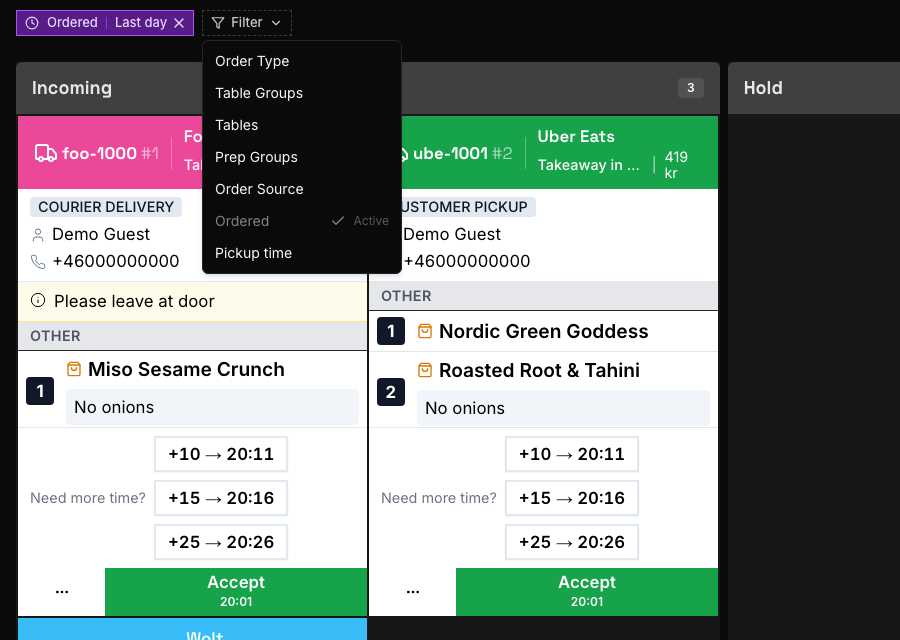
Använd filterfältet för att fokusera displayen utan att ändra beställningarna:
- Ordertyp: Alla typer, Äta här, Avhämtning eller Över disk.
- Bordsgrupper: Visa bongar från valda bordsgrupper.
- Bord: Visa bongar från valda bord.
- Prepgrupper: Visa artiklar som tillhör valda prepgrupper.
- Orderkälla: Visa alla källor, endast kassabeställningar eller endast gästbeställningar.
- Beställd: Begränsa bongarna efter när beställningen kom in. Standard är senaste dagen.
- Upphämtningstid: Begränsa bongarna efter önskad upphämtningstid.
Sorteringsmenyn styr i vilken ordning artiklarna visas på varje bong:
- Bongordning följer köksets inställda sorteringsordning och matchar utskrivna köksbongar.
- Alfabetisk sorterar artikelnamnen från A till Ö.
- Ankomstordning behåller ordningen som artiklarna lades till i.
Välj visningsläge
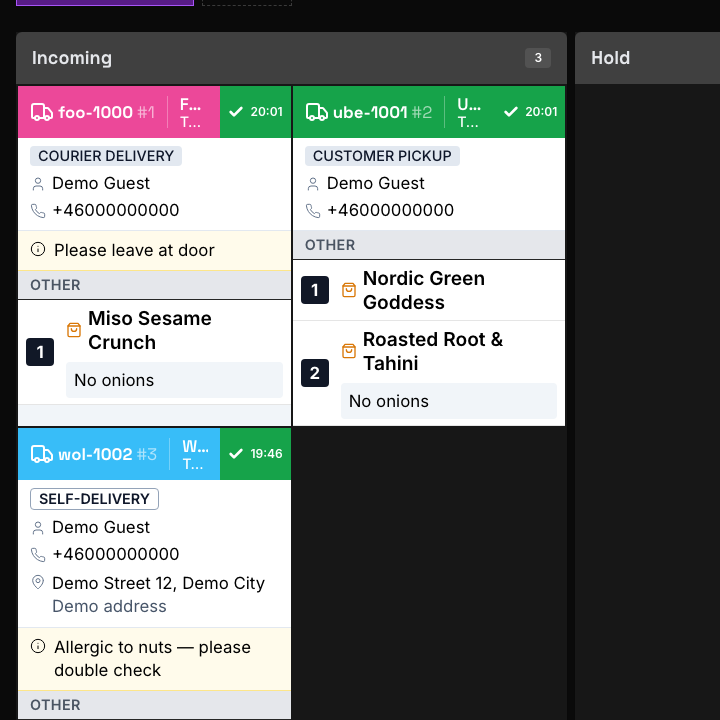
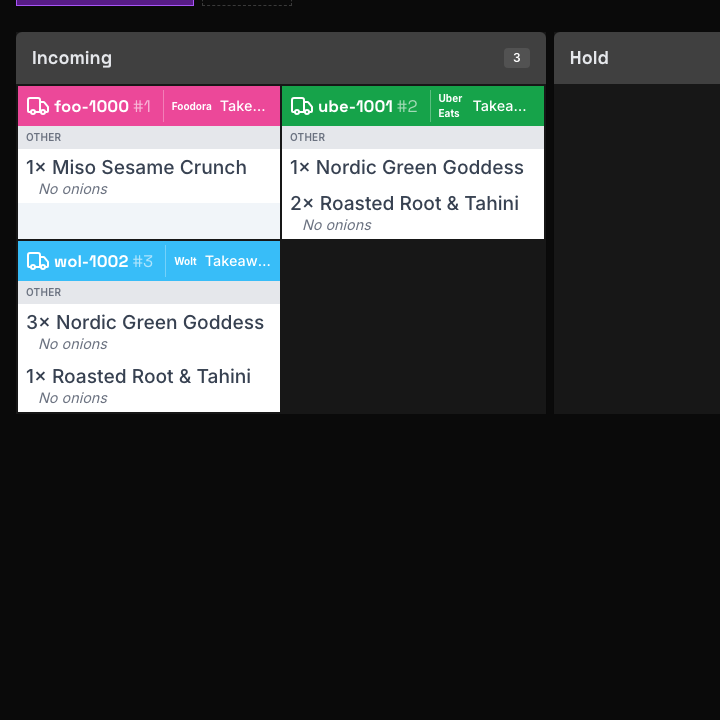
Välj det läge som ger köket tillräckligt med information utan att bongarna blir svårare att överblicka.
| Läge | Vad som visas | Så arbetar du med en bong | Passar bäst för |
|---|---|---|---|
| Detaljerad | Hela beställningen, gäst- och leveransuppgifter, kommentarer, artiklar, modifieringar, tidsval och stora knappar | Använd de synliga knapparna; välj rubriken för att öppna detaljerna | Att acceptera beställningar och gå igenom dem i sin helhet |
| Fokuserad | Hela sammanhanget och artikelrader i ett tätare kort, med huvudknappen i rubriken | Använd knappen i rubriken; välj informationsytan för att öppna detaljerna | Hektiska pass där sammanhanget ändå behövs |
| Kompakt | Rubrik, artikelrader, antal och modifieringar utan extra information eller knappytor | Kort tryck flyttar framåt; håll in för detaljer | Täta köksskärmar där artikeldetaljerna är viktiga |
| Mini | Endast bongrubriker | Kort tryck flyttar framåt; håll in för detaljer | Övergripande koll på kön och små skärmar |
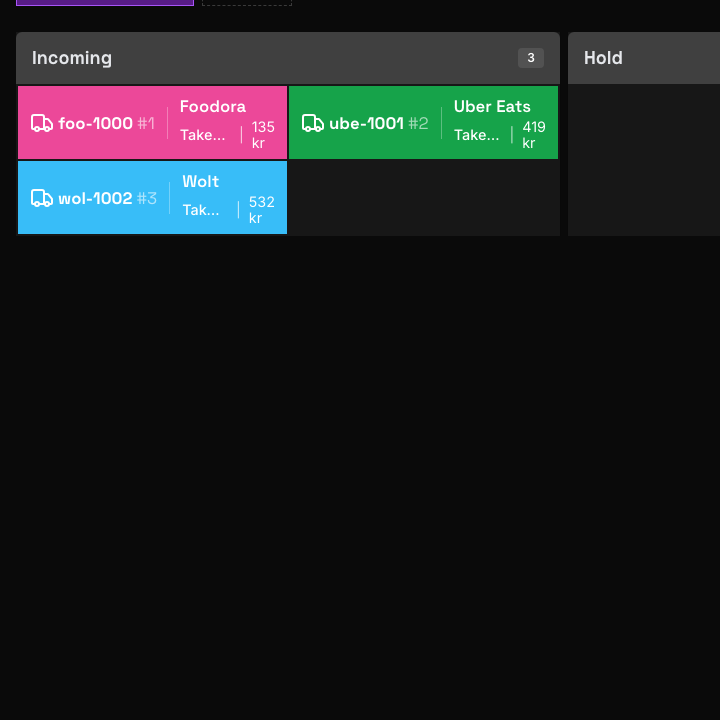
Öppna KDS-inställningarna
- Öppna Köksdisplay.
- Välj KDS-inställningar uppe till höger.
Ändringarna gäller direkt. Stäng panelen för att gå tillbaka till displayen.
Använd en snabbinställning
Öppna Snabbinställningar och välj en förinställning:
- Vanlig återställer standardvyn: Inkommande, Vänta, Pågående och Upphämtning. Den visar priser och beställningstider, döljer kundnamn i titeln, använder artikelfärger och går inte vidare automatiskt.
- Överskott behåller bara Upphämtning. Den döljer priser och beställningstider, visar kundens namn i titeln och tar bort radfärgningen.
En förinställning ändrar flera inställningar samtidigt. Gå igenom övriga avsnitt efteråt.
Välj kolumner och bongarnas riktning
- Öppna Visa kolumner.
- Välj vilka steg displayen ska visa: Inkommande, Schemalagda, Vänta, Pågående, Upphämtning eller Klara.
- Slå på Omvänd ordning på ordrar i kolumnerna (höger till vänster) om nya bongar ska komma in från andra hållet i varje kolumn.
- När flera kolumner visas kan du använda Kolumnbredder för att göra en kolumn bredare eller smalare. Välj Återställ för att gå tillbaka till lika breda kolumner.
Displayen uppdateras och visar de valda stegen och bongriktningen.
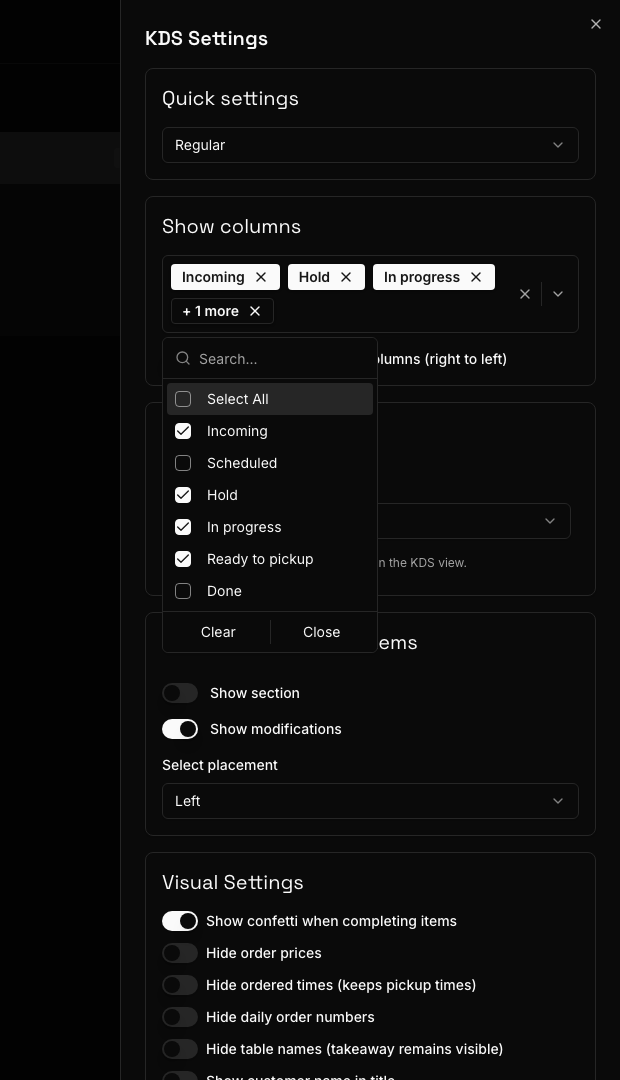
Ställ in textstorlek och artikelsammanfattning
Under Textstorlek väljer du Liten (-20%), Medium (standard), Stor (+20%) eller Extra stor (+50%).
Under Sammanfattning av beställda varor:
- Slå på Visa sektion för att summera antalet av varje artikel på alla synliga bongar.
- Använd Visa modifieringar för att ta med eller utesluta modifieringar i sammanfattningen.
- Välj placering till Vänster eller Höger.
Använd större text för skärmar som läses på avstånd. Använd sammanfattningen när en station behöver totala antal för hela kön.
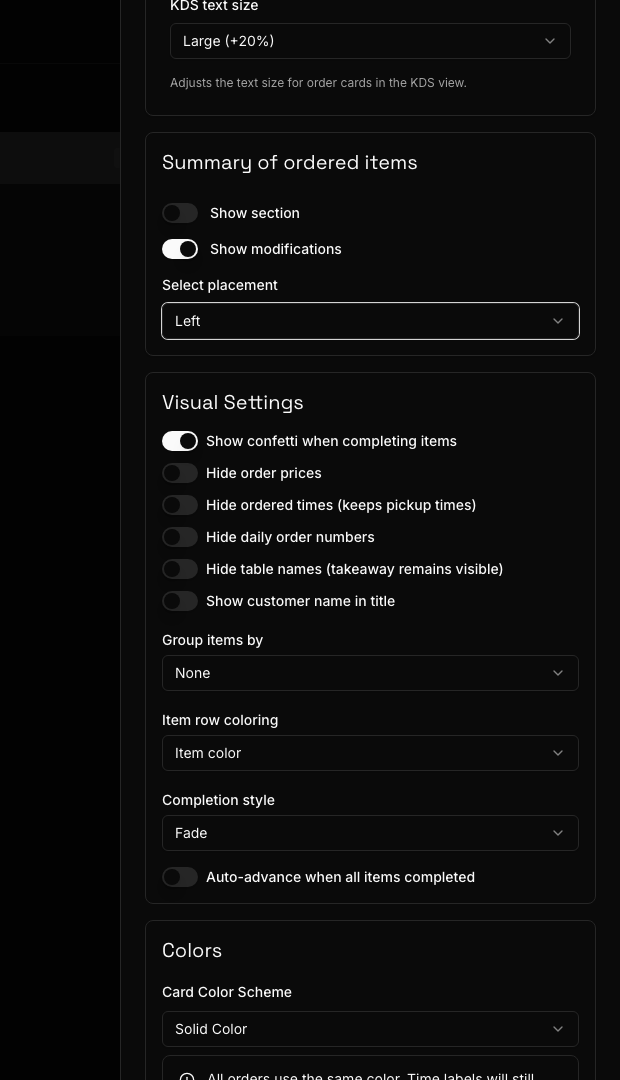
Välj visuella inställningar
Använd reglagen för att styra vilken information som visas på varje bong:
- Visa konfetti när objekt markeras som klara lägger till en animation när något blir klart.
- Dölj orderpriser tar bort priserna från bongarna.
- Dölj beställningstid (behåller upphämtningstid) tar bort tiden då beställningen kom in men behåller önskad upphämtningstid.
- Dölj dagliga ordernummer tar bort Karmas dagliga ordernummer.
- Dölj bordsnamn (avhämtning visas fortfarande) tar bort bordsnamn för beställningar på plats men behåller takeaway-märkningen.
- Visa kundens namn i titeln lägger till kundens namn i bongens rubrik.
Använd Gruppera objekt efter för att välja Ingen, Prepgrupp eller Servering. Servering visas bara om platsen har servering (coursing) inställt.
Använd Radfärgning för att välja Ingen, Objektets färg eller Serveringens färg. Serveringens färg visas bara när servering är inställt.
Om det finns prepgrupper kan du välja Primära prepgrupper. Artiklar från andra grupper visas nedtonade. När du har valt en primär grupp kan Dölj bongar med enbart sekundära prepgrupper ta bort bongar som inte innehåller något arbete för stationens primära grupper.
När artiklarna grupperas efter Servering och en primär prepgrupp är vald visar Visa sekundära prepgrupper endast i mina serveringar artiklar från sekundära grupper bara i serveringar som också innehåller en artikel från en primär grupp.
Ställ in vad som händer när något är klart
Använd Slutförandestil för att välja vad som händer med en klarmarkerad artikelrad:
- Överstruken behåller raden och stryker över den.
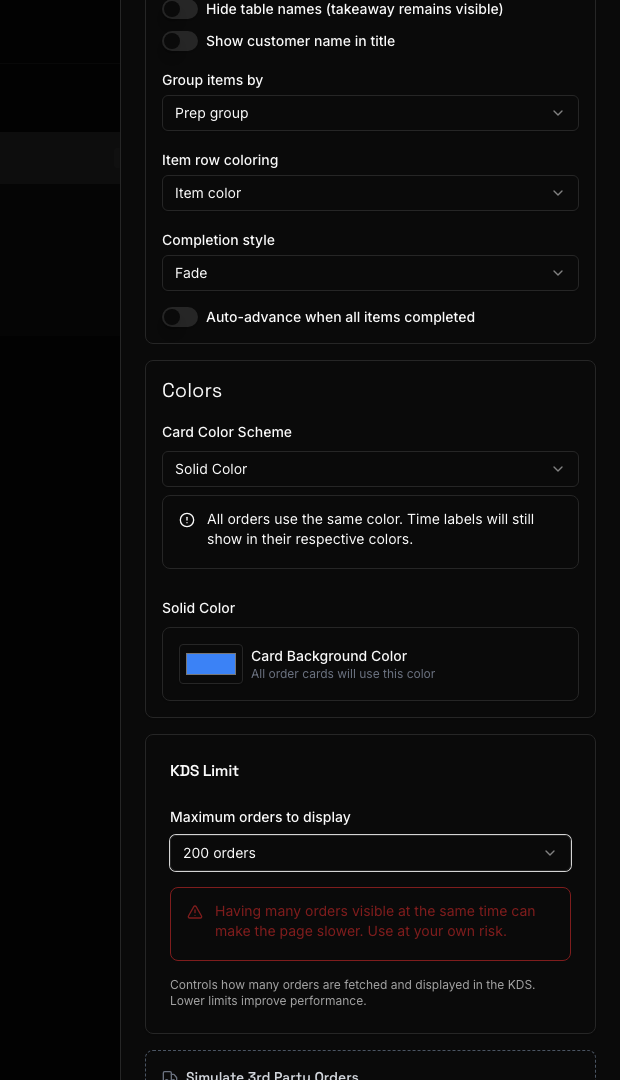
- Tonad behåller raden men tonar ned den.
- Dold tar bort den klara raden från bongen.
Slå bara på Gå vidare automatiskt när alla objekt är klara om bongen ska flyttas till nästa steg så snart den sista artikeln är klar.
Slå på Skicka endast markerade varor vidare om bongens knapp bara ska flytta de artiklar du har bockat av till nästa steg, medan resten stannar kvar på bongen.
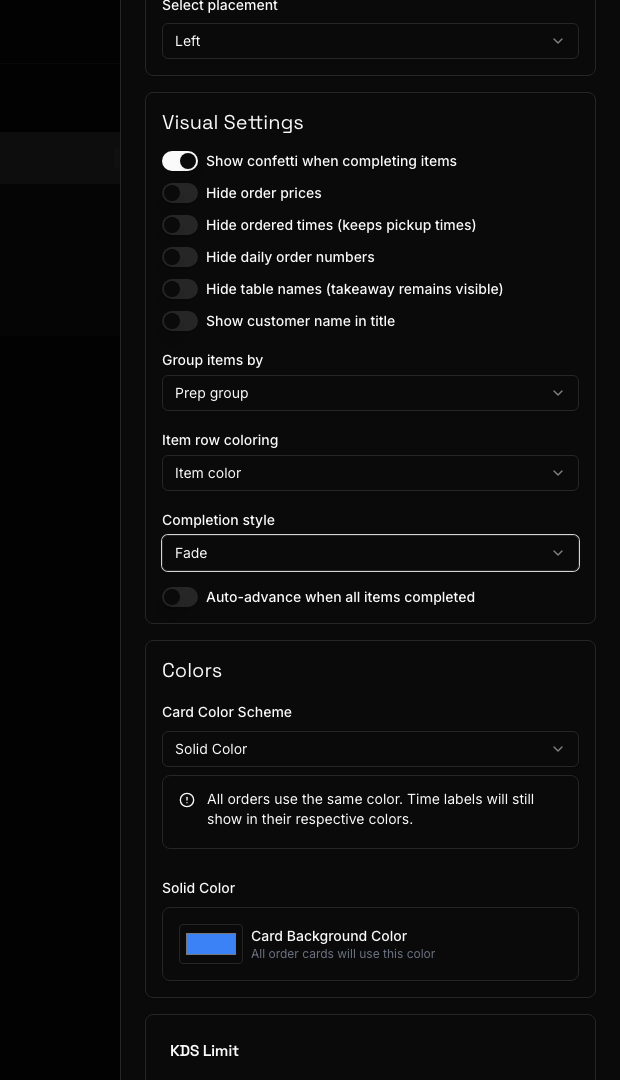
Välj färger på korten
Under Färger väljer du ett Färgschema för kort:
- Tidsbaserad: Bongens färg ändras med tiden. Välj en färg för att ändra den, lägg till gränser med färg och antal minuter, eller ta bort gränser utöver startfärgen.
- Typbaserad (bord/avhämtning): Bordsbeställningar är blå och takeaway-beställningar lila.
- Enfärgad: Alla bongar får den valda bakgrundsfärgen. Tidsetiketterna behåller sina egna statusfärger.
Tidsbaserade färger gör det lätt att se förseningar. Typbaserade färger skiljer serveringsformerna åt. En enda färg ger en enhetlig display.
Ställ in KDS-gränsen
Under KDS-gräns väljer du hur många beställningar som högst ska hämtas: 100, 200, 300, 400 eller 500.
Behåll gränsen på 100 ordrar om displayen inte behöver mer historik. Från 200 ordrar visar Karma en varning, eftersom en större display kan reagera långsammare.
Felsök köksdisplayen
Inga bongar visas
- Ta bort aktiva filter i filterfältet.
- Ställ in Beställd på en period som omfattar beställningen.
- Öppna KDS-inställningar och kontrollera att bongens aktuella steg är valt under Visa kolumner.
- Om ett prepgruppsfilter är aktivt, kontrollera att beställningen innehåller artiklar från den gruppen.
Notiser kommer inte fram
- Välj klockan och tillåt notiser när webbläsaren frågar.
- Om notiser är blockerade, tillåt dem för Karma i webbläsarens eller enhetens inställningar.
- På iPhone eller iPad: uppdatera till iOS 16.4 eller senare, lägg till Karma på hemskärmen, öppna Karma därifrån och välj klockan igen.
Val för prepgrupper eller servering saknas
Skapa först de prepgrupper eller den serveringsinställning (coursing) som behövs för platsen. Köksdisplayen döljer val som inte är inställda.
Displayen känns långsam
Sänk KDS-gräns, korta ned tidsperioden för Beställd och använd filter för det arbete stationen behöver.