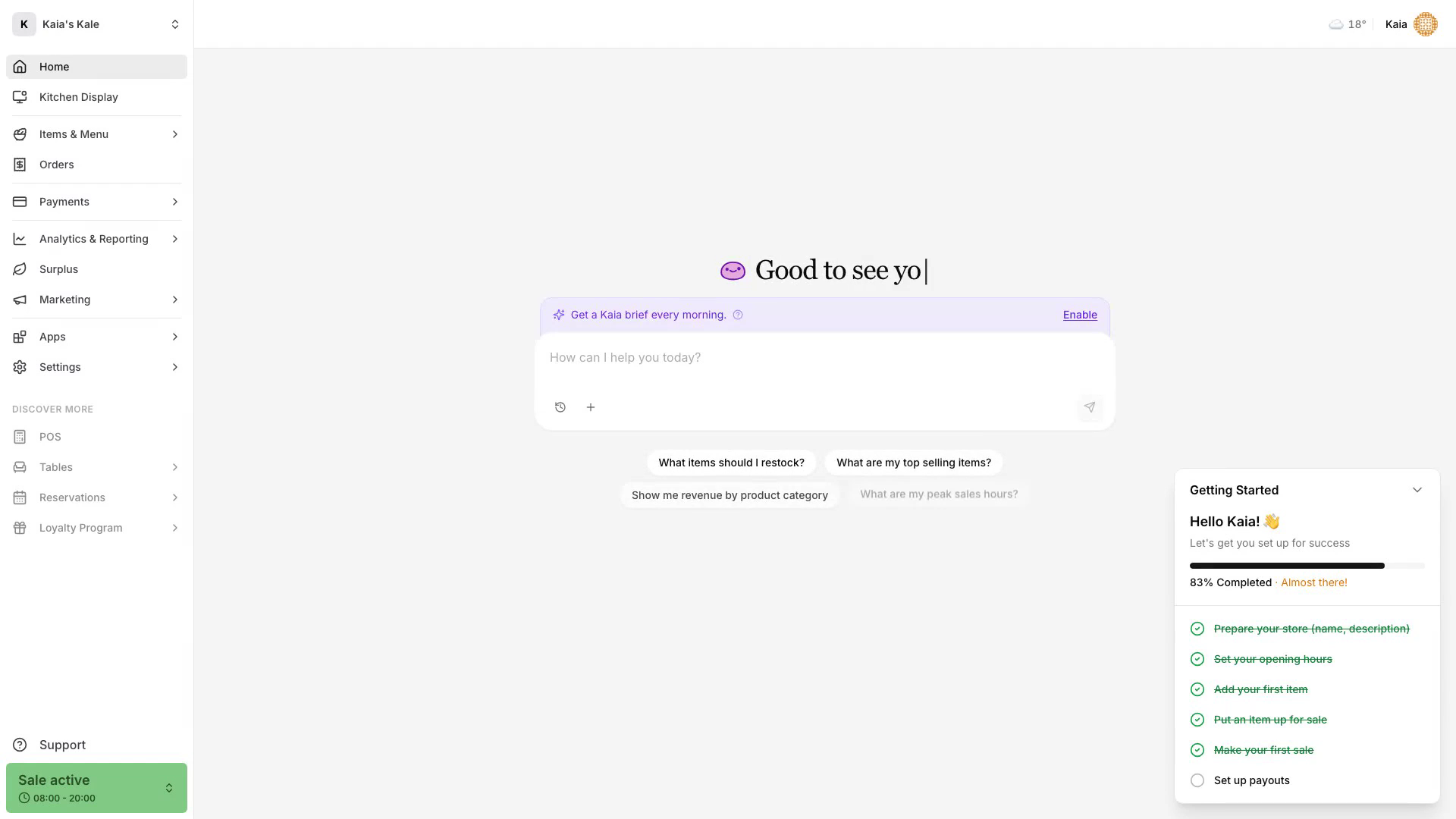
Använd Överskott i Karma för att publicera rabatterade varor för idag eller ett senare datum, upprepa en försäljning på valda veckodagar, följa nya beställningar och se hur försäljningen går.
Se hela arbetsflödet i genomgången på två minuter.
Innan du börjar
- Lägg till de artiklar du vill sälja under Artiklar & Meny.
- Ställ in platsens upphämtningstider för överskott under Överskott → Upphämtningstider. Gästerna hämtar alla överskottsbeställningar, både engångs- och återkommande, under de tiderna, eller under öppettiderna om inga upphämtningstider är inställda.
- Kontrollera att din roll kan öppna Köksdisplay, Beställningar och Analys & Rapporter om du ska följa beställningar och resultat.
Öppna Överskott
- Öppna Karma.
- Välj Överskott i vänstermenyn.
- Välj Lägg till.
Sidan visar dina artiklar och panelen Ej sparade, där du ställer in försäljningen innan du publicerar den.
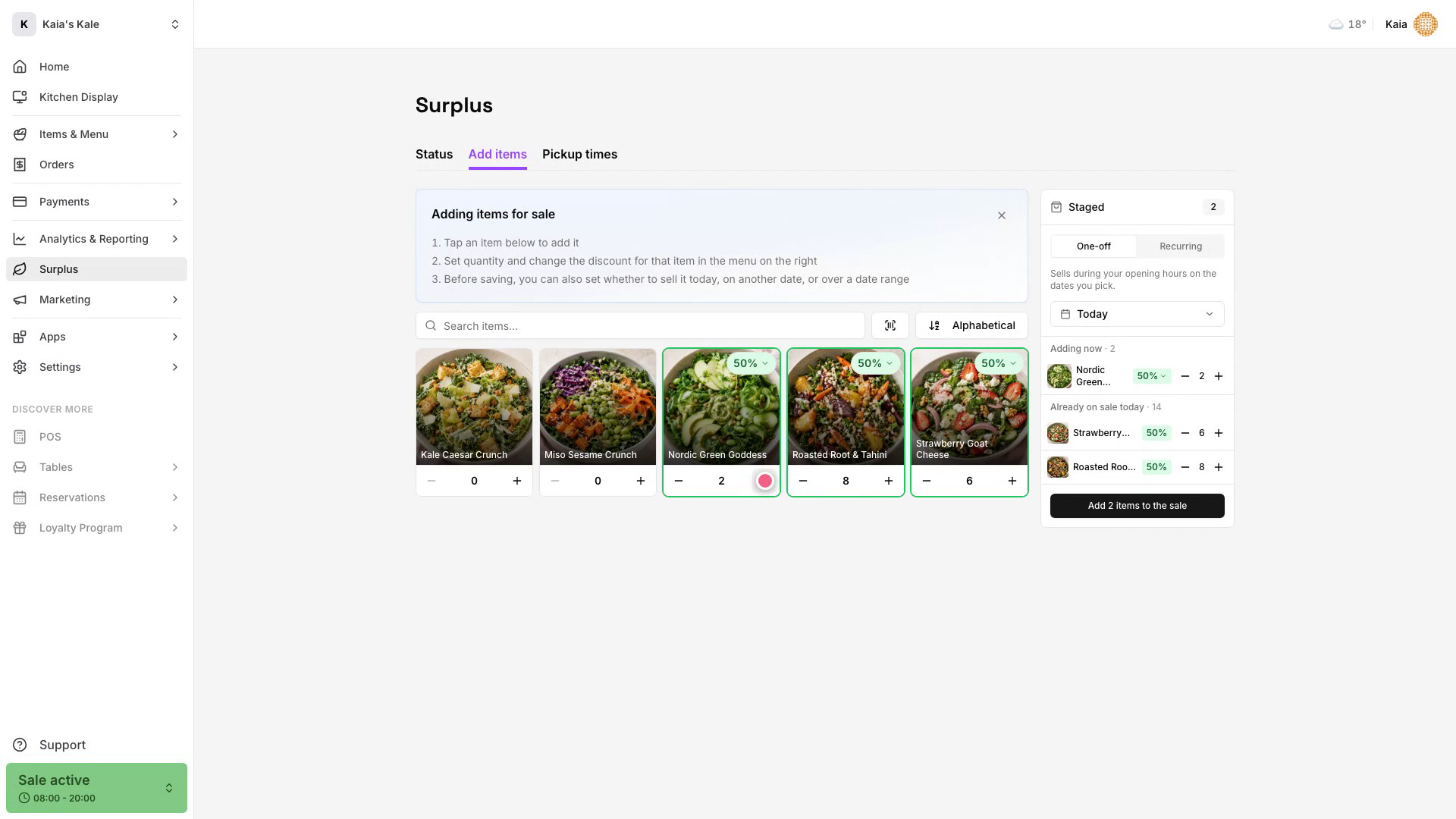
Lägg till överskottsvaror för idag
- Behåll Engång valt i panelen Ej sparade.
- Behåll Idag som försäljningsdatum.
- Hitta artikeln och välj + för att lägga till den. Välj + igen om du vill öka antalet.
- Kontrollera antal och rabatt i panelen Ej sparade.
- Välj Lägg till. Knappen visar hur många varor du lägger till, till exempel Lägg till 2 varor.
De publicerade varorna visas på fliken Status, där datumväljaren visar Idag som standard.
Planera överskott för ett annat datum
- Behåll Engång valt.
- Öppna menyn Idag och välj Imorgon, eller Specifikt datum och välj ett datum.
- Lägg till en artikel och ange antal.
- Kontrollera antal och rabatt i panelen Ej sparade.
- Välj Lägg till. Knappen visar hur många varor du lägger till.
Välj datumet i datumväljaren på fliken Status för att se försäljningen.
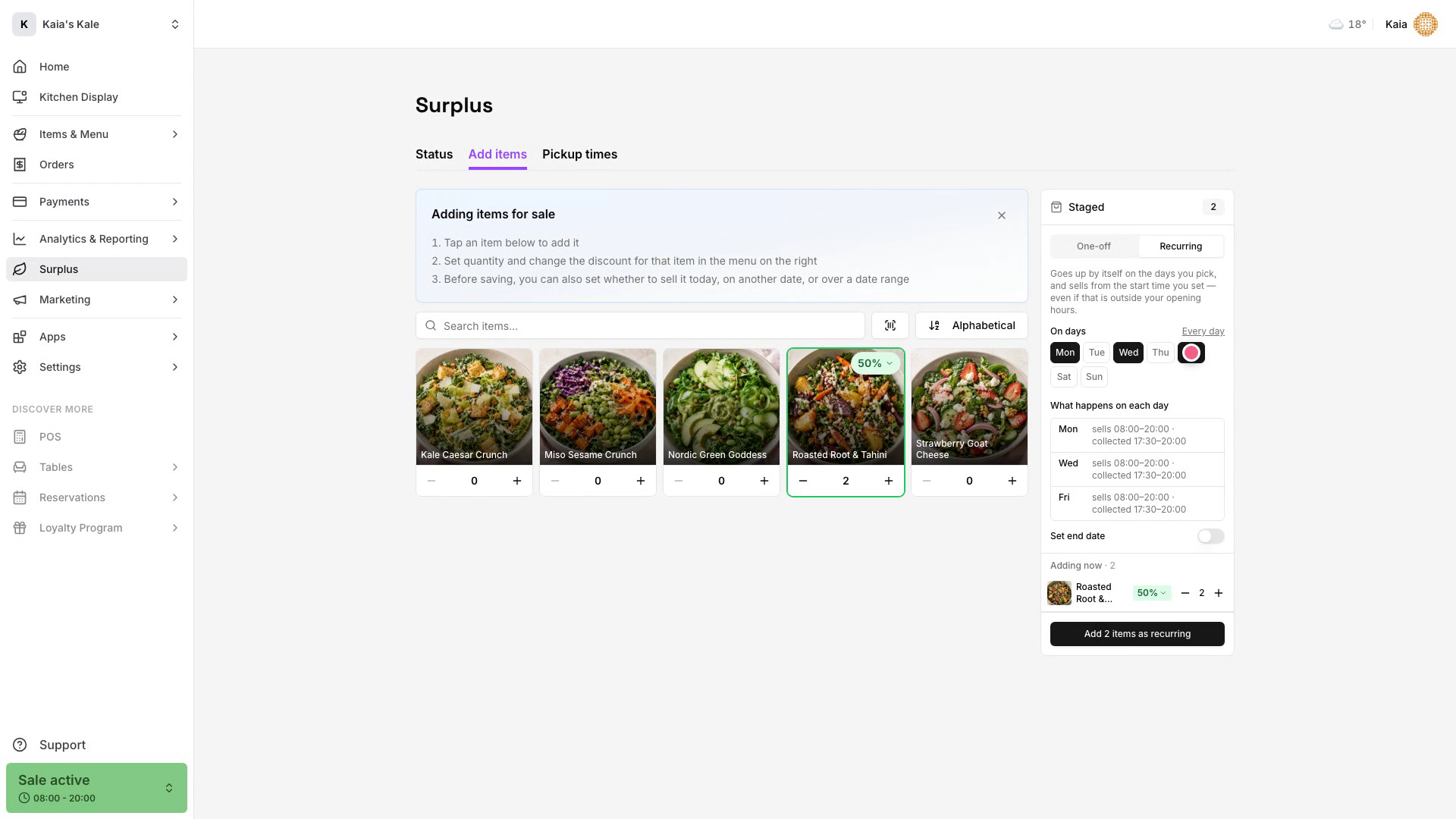
Skapa en återkommande överskottsförsäljning
- Välj Återkommande i panelen Ej sparade.
- Lägg till en artikel och ange hur många som ska publiceras varje vald dag.
- Välj vilka veckodagar försäljningen ska upprepas.
- Kontrollera försäljnings- och upphämtningstiderna som visas för varje vald dag.
- Välj Lägg till [antal] varor som återkommande.
Schemat visas under Återkommande scheman på fliken Status. Varje vald dag börjar försäljningen när platsen öppnar, och gästerna hämtar under upphämtningstiderna för överskott.
Slutför en ny överskottsbeställning
- Öppna Köksdisplay i vänstermenyn.
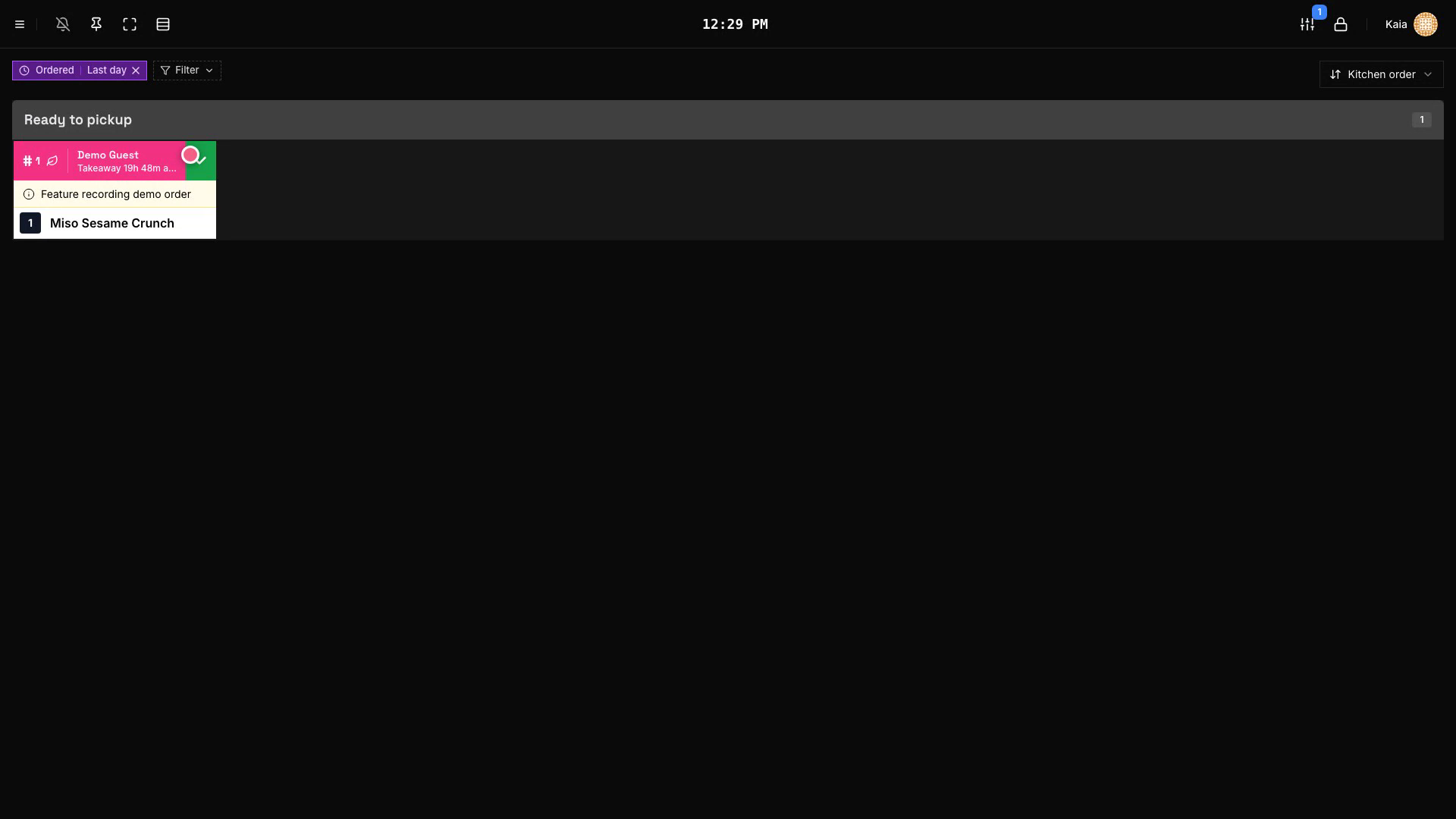
- Hitta den nya beställningen i Upphämtning. Överskottsbeställningar visas som ett rosa kort med en lövikon.
- Kontrollera gästens namn innan du lämnar ut beställningen.
- Välj Bekräfta upphämtning på bongen för att slutföra beställningen. I de kompakta kortlayouterna räcker ett kort tryck på kortet.
Beställningen försvinner från listan och läggs till i beställningshistoriken som levererad.
Hitta beställningen i historiken
- Välj Beställningar i vänstermenyn.
- Filtrera tabellen på Idag vid behov.
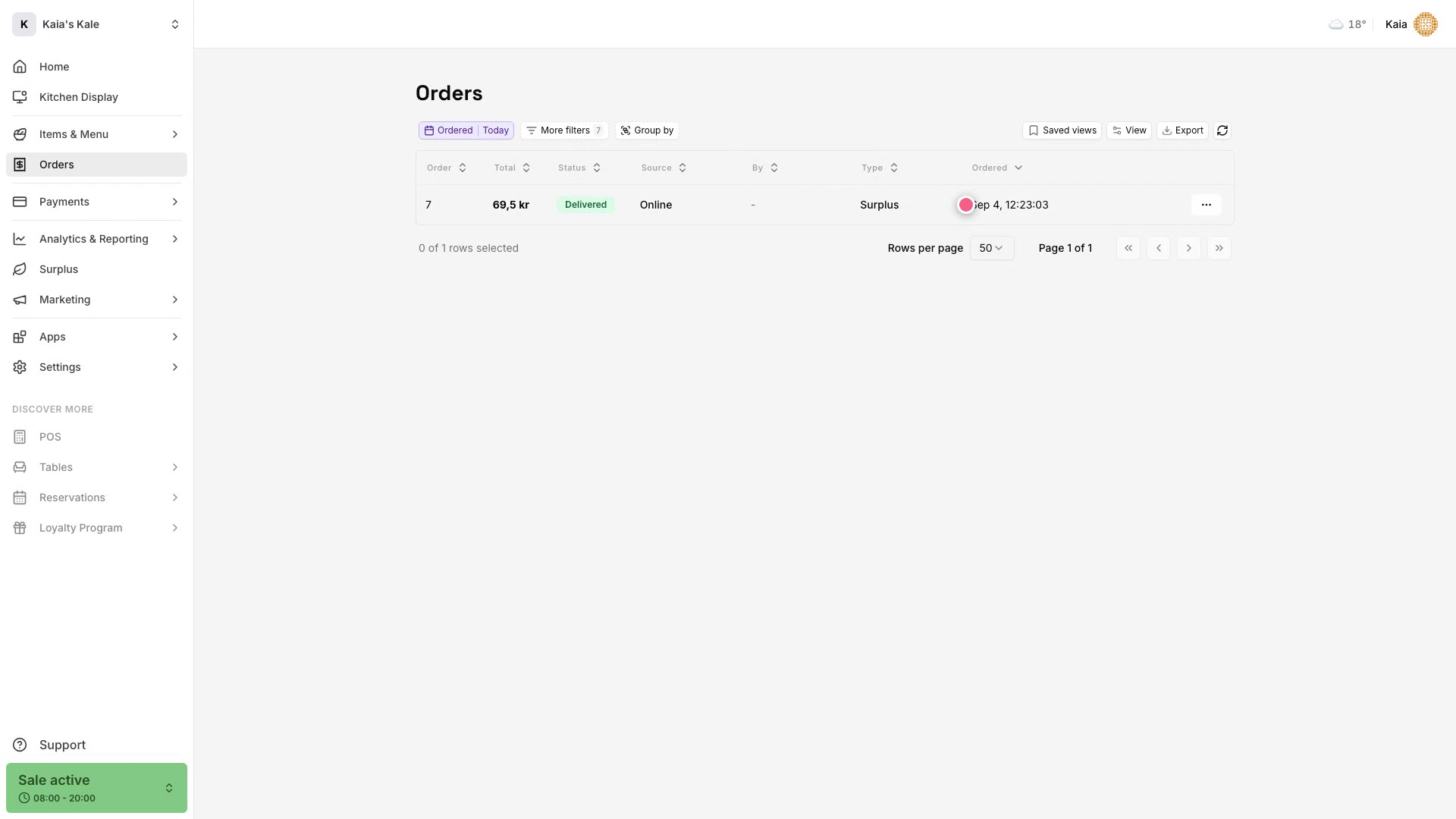
- Hitta den levererade beställningen och titta i kolumnen Typ.
- Välj raden för att öppna beställningens detaljer.
Etiketten Överskott i kolumnen Typ skiljer beställningen från andra onlinebeställningar.
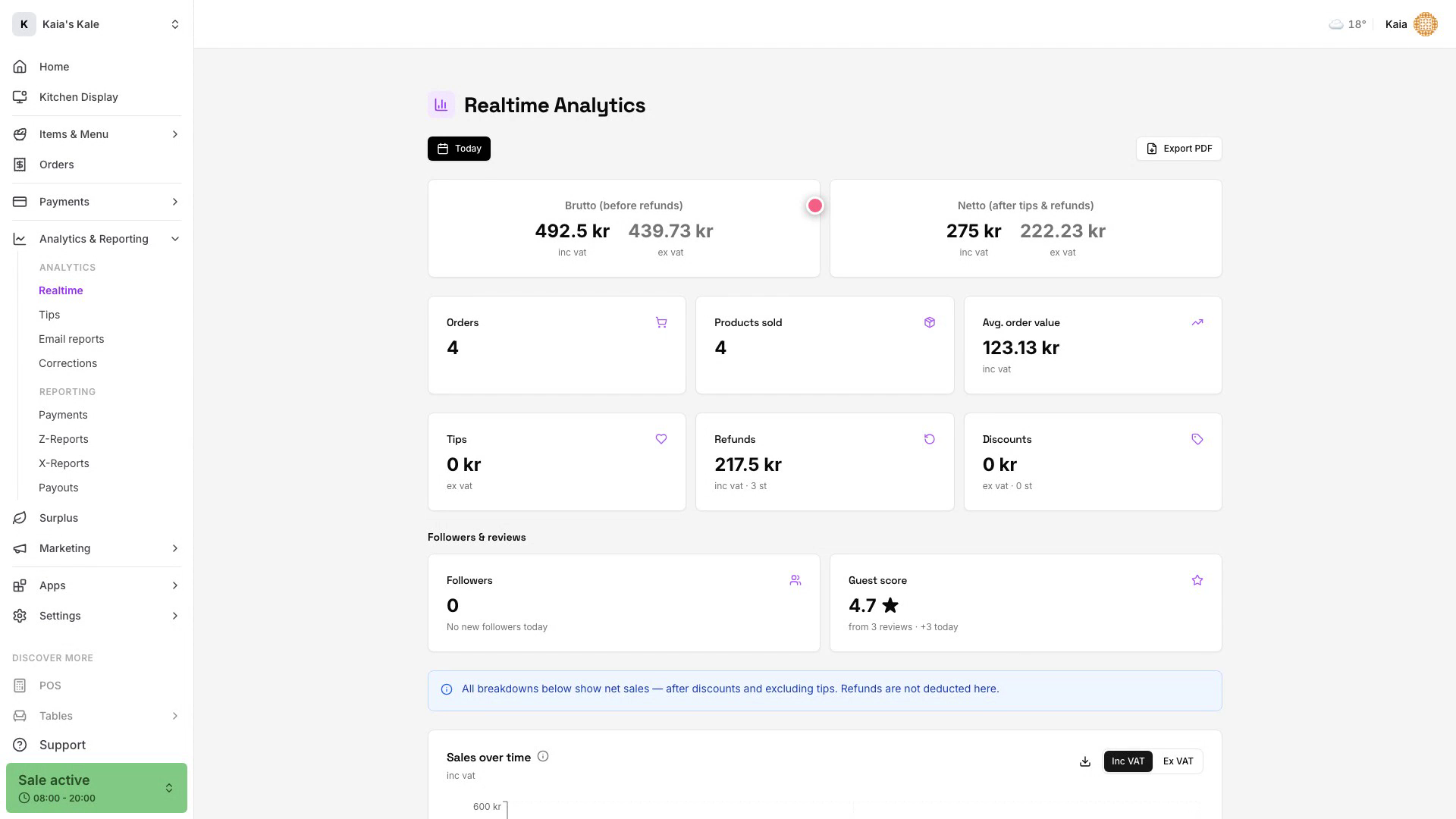
Följ försäljning, följare och betyg
- Öppna Analys & Rapporter i vänstermenyn.
- Välj Realtid.
- Se brutto- och nettoförsäljning, antal ordrar, antal produkter och snittorder.
- Titta på Följare & omdöme för dagens förändring i antal följare och gästbetyget.
Använd datumväljaren högst upp i Realtid när du vill se en annan period.