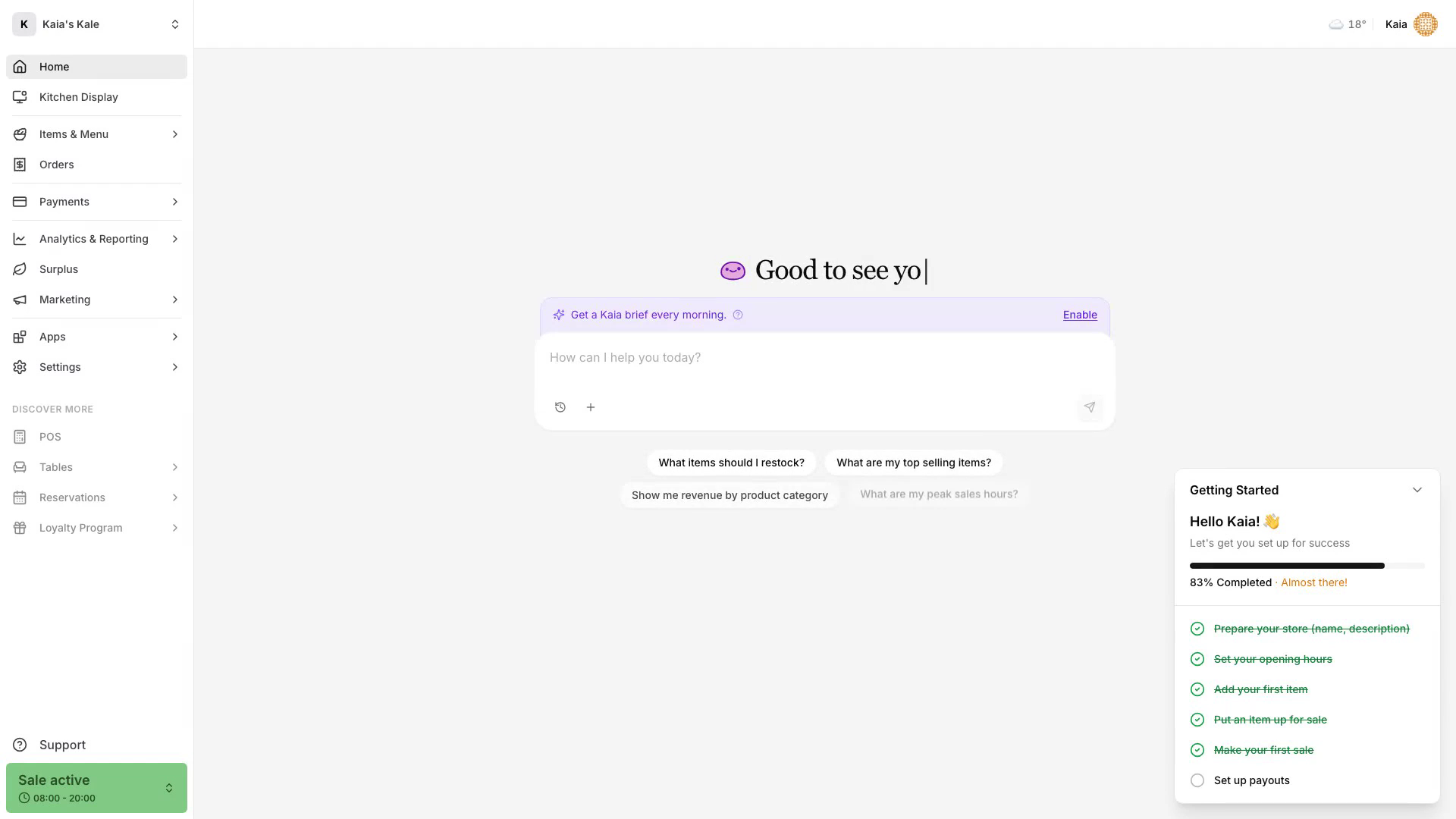
Use Surplus in Karma to publish discounted items for today or a later date, repeat a listing on selected weekdays, follow new orders, and review sales performance.
Watch this two-minute walkthrough to see the complete workflow.
Before you start
- Add the products you want to sell to Items & Menu.
- Set the location's surplus pickup hours under Surplus → Pickup times. Guests collect all surplus orders, one-off and recurring, during these hours, or during your opening hours if none are set.
- Make sure your role can open Kitchen Display, Orders, and Analytics & Reporting if you need to follow orders and results.
Open Surplus
- Open Karma.
- Select Surplus in the left menu.
- Select Add items.
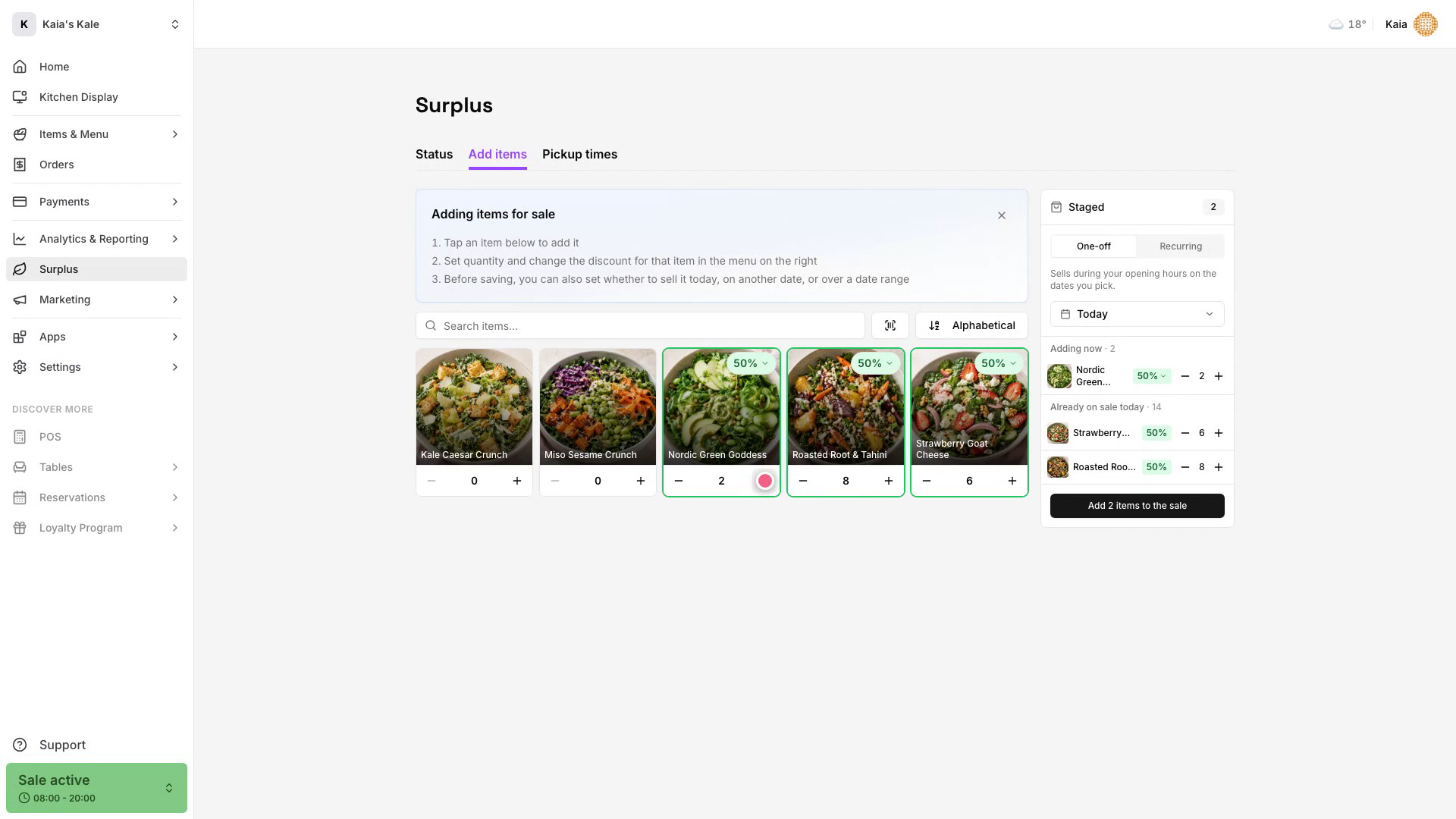
The page shows your product catalog and a Staged panel where you configure the listing before publishing it.
Add surplus items for today
- Keep One-off selected in the Staged panel.
- Keep Today selected as the sale date.
- Find the product and select + to add it. Select + again if you want to increase the quantity.
- Check the quantity and discount in the Staged panel.
- Select Add. The button shows how many items you are adding, for example Add 2 items.
The published items appear on the Status tab, where the date picker shows Today by default.
Schedule surplus for another date
- Keep One-off selected.
- Open the Today menu and choose Tomorrow, or Specific date and pick a date.
- Add a product and set its quantity.
- Check the quantity and discount in the Staged panel.
- Select Add. The button shows how many items you are adding.
On the Status tab, pick that date in the date picker to see the listing.
Create a recurring surplus listing
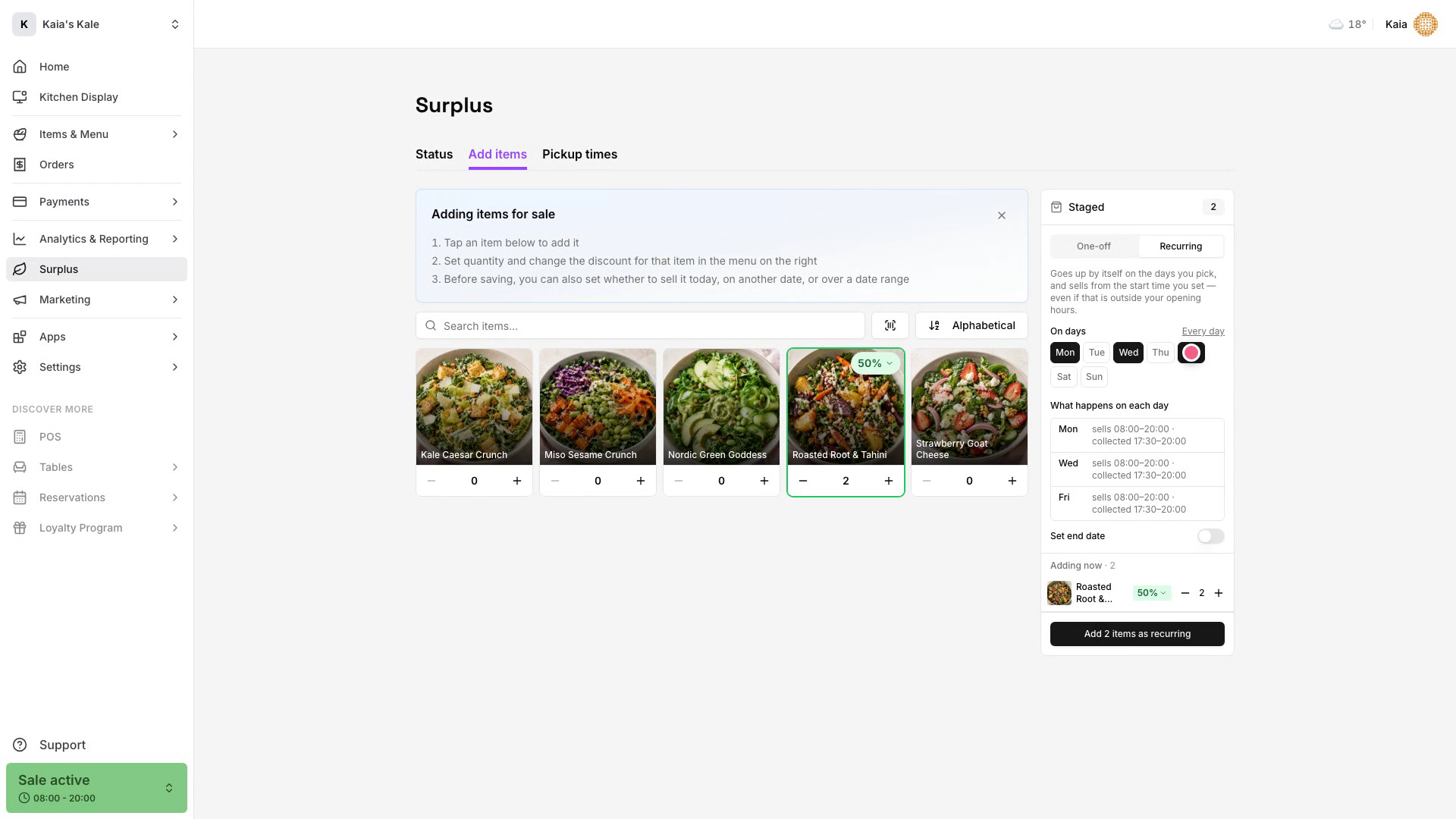
- Select Recurring in the Staged panel.
- Add a product and set the quantity to publish on each selected day.
- Select the weekdays when the listing should repeat.
- Check the selling and pickup times shown for each selected day.
- Select Add [number] items as recurring.
The schedule appears under Recurring schedules on the Status tab. On each selected day, the listing starts selling when the location opens, and guests collect during your surplus pickup hours.
Complete a new surplus order
- Open Kitchen Display from the left menu.
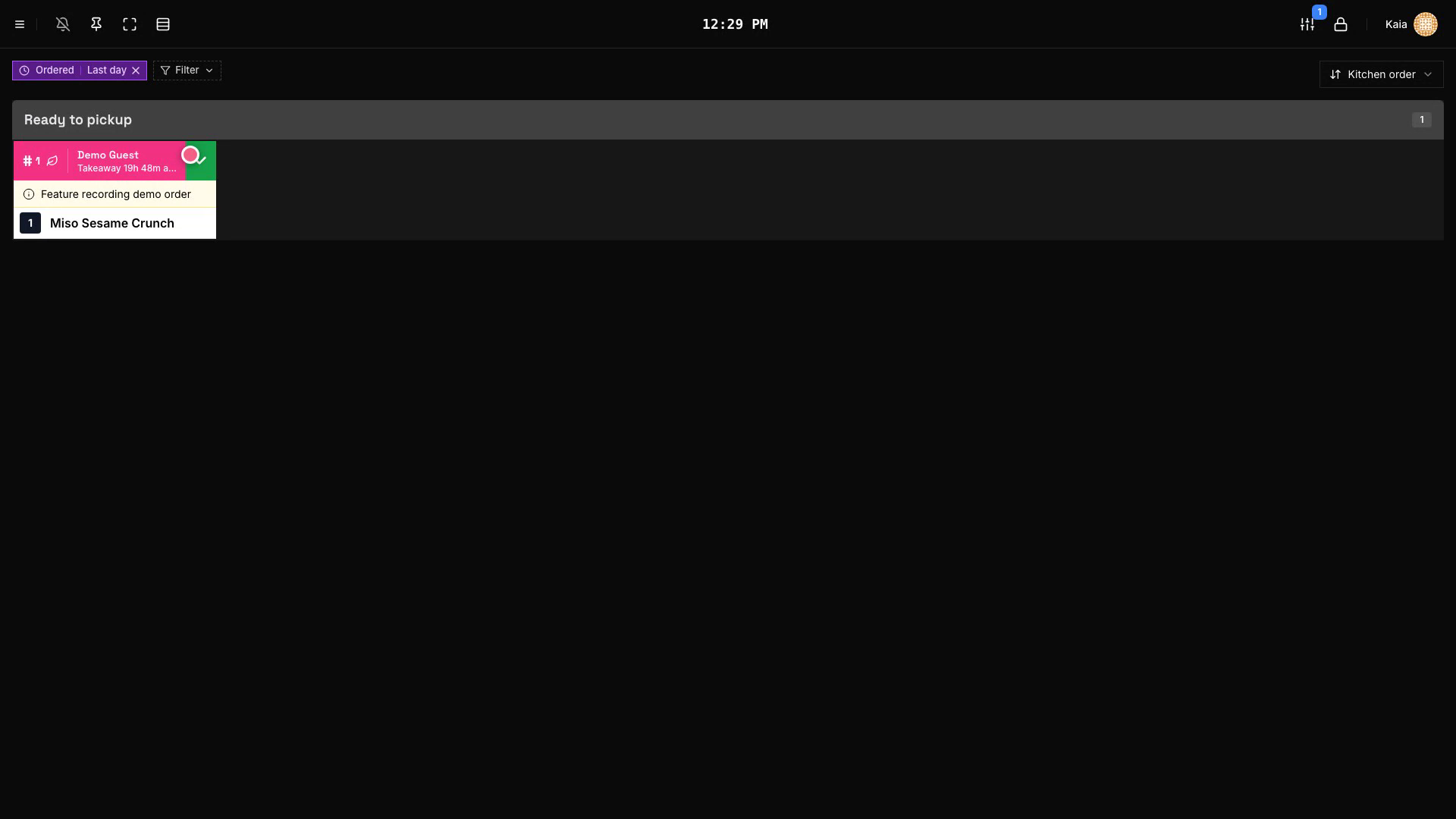
- Find the new order in Ready to pickup. Surplus orders use a pink card and a leaf icon.
- Confirm the guest name before handing over the order.
- Select Confirm picked up on the order card to complete it. In the compact card layouts, a short tap on the card completes it.
The order leaves the ready list and is added to order history as delivered.
Find the order in history
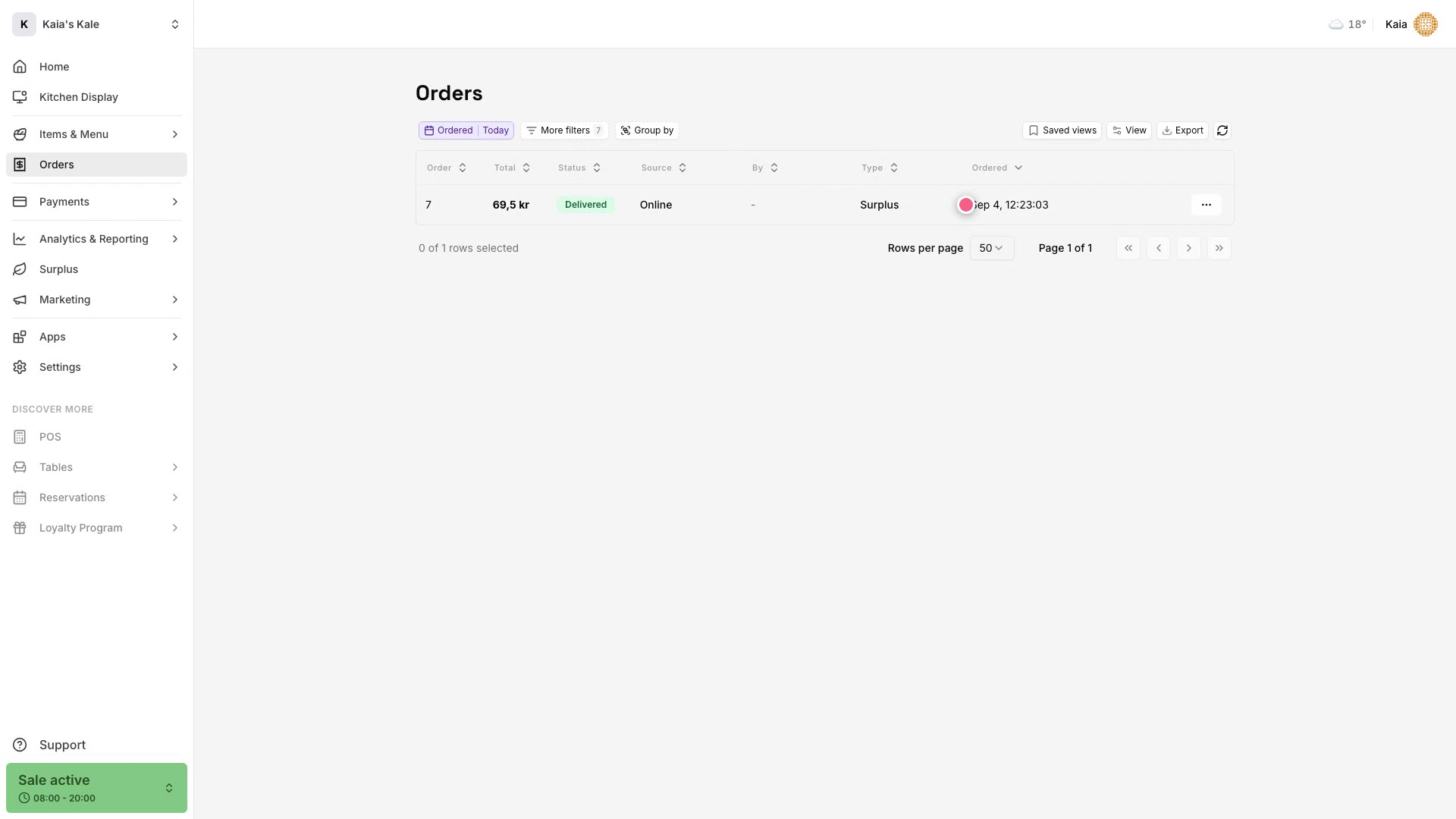
- Select Orders in the left menu.
- Filter the table to Today if needed.
- Find the delivered order and check the Type column.
- Select the row to open the order details.
The Surplus label in the Type column distinguishes the order from other online orders.
Review sales, followers, and ratings
- Open Analytics & Reporting in the left menu.
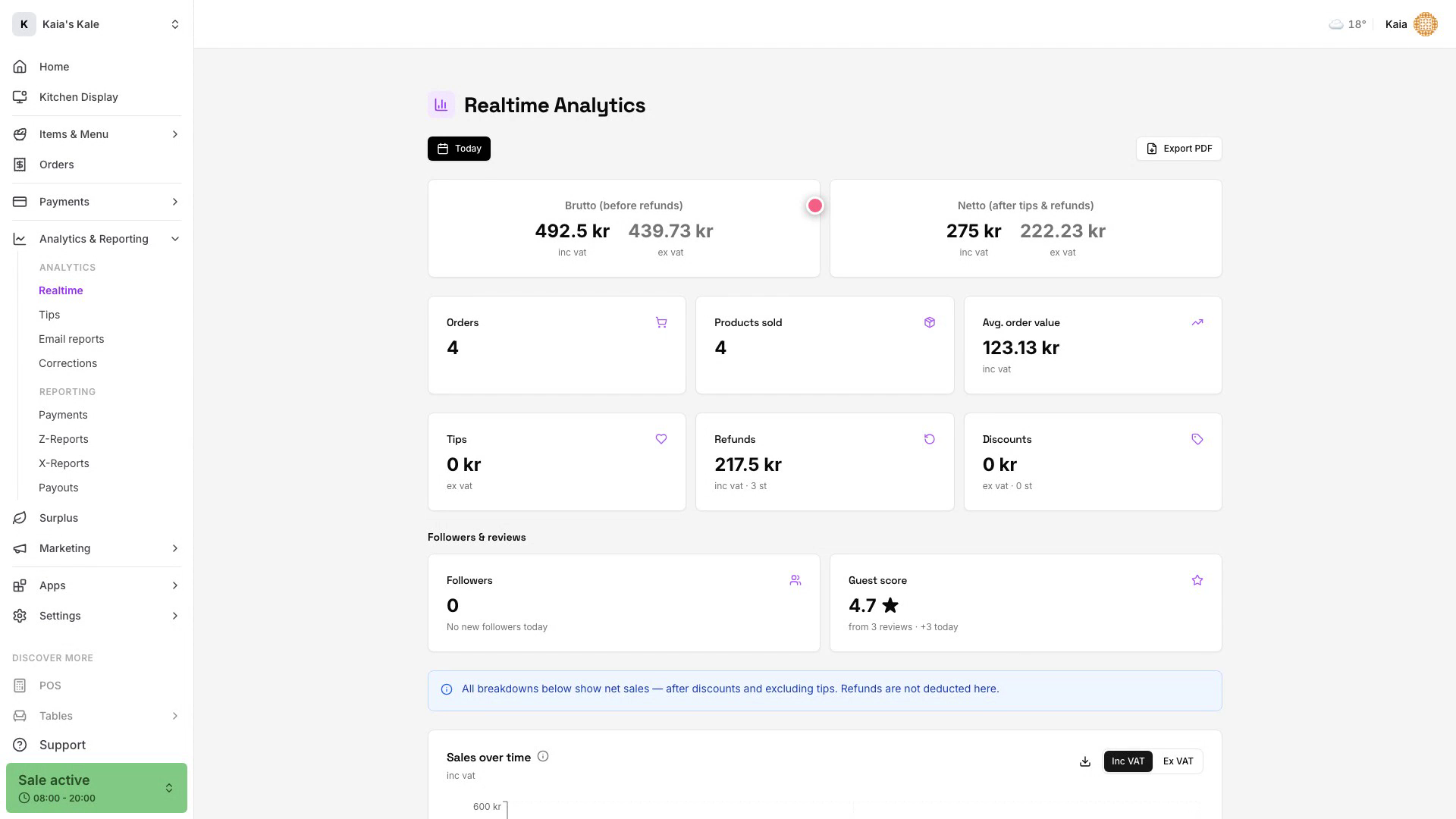
- Select Realtime.
- Review gross and net sales, orders, products sold, and average order value.
- Check Followers & reviews for today's follower change and guest score.
Use the date control at the top of Realtime Analytics when you want to review another period.