Use Discover in the Karma app to find food nearby, search for a place or item, and narrow the results with dietary filters or categories.
Watch the 41-second walkthrough, or follow the written steps below.
Find food near you
- Open Discover in the Karma app.
- Allow location access if you want results around your current position.
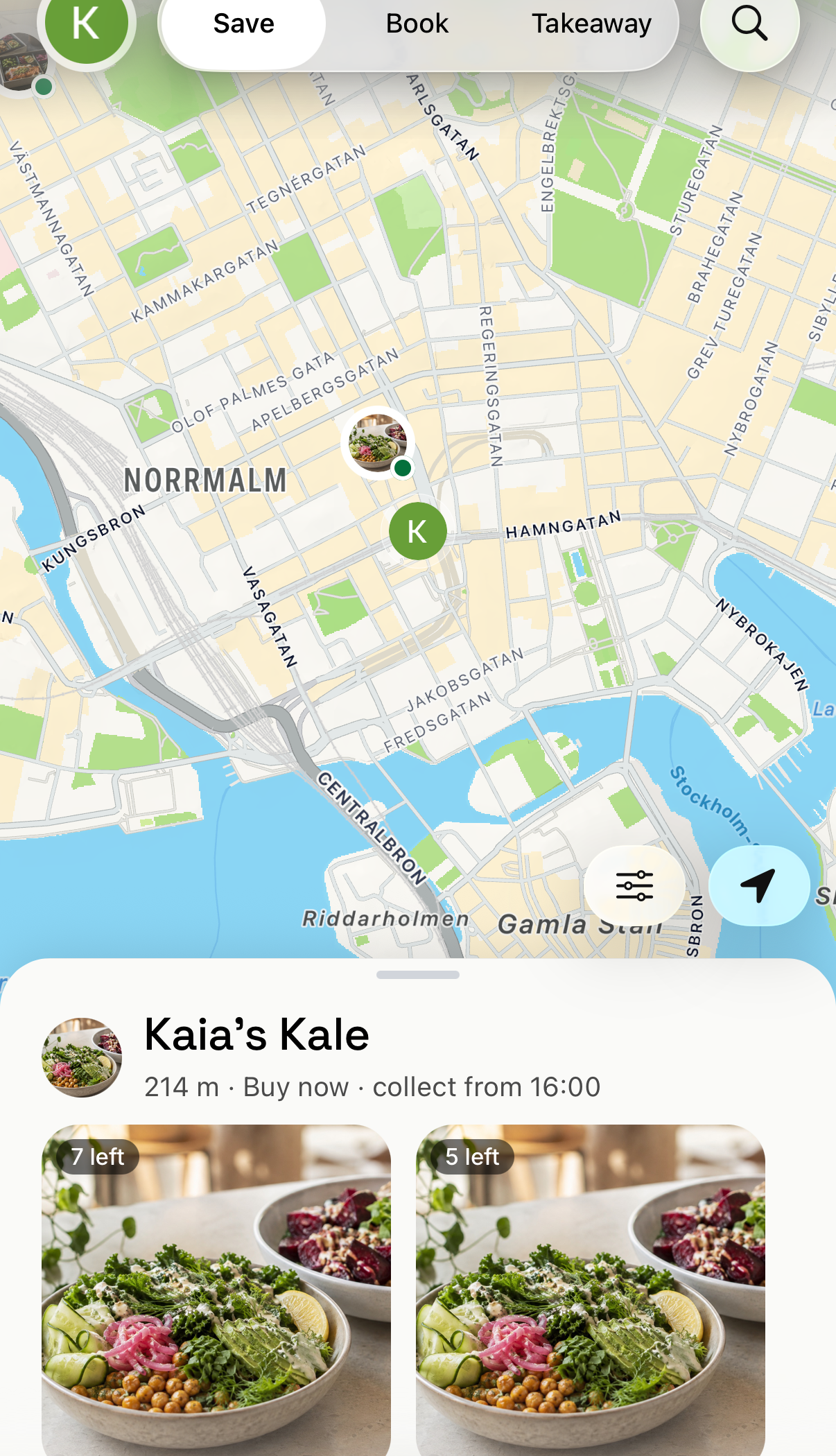
- Look for round markers with the location's logo. They show locations with surplus available now. A green dot on the marker means the location is open; a yellow dot means it has surplus but is not open yet or has closed for now. Small dark dots are locations without surplus right now.
- Select a marker, or an offer in the list below the map, to check the items, price, amount left, and pickup time.
- Select the location arrow in the bottom-right corner to return the map to your position.
Search for a location or food
- Select the search button (magnifying glass) at the top right of Discover.
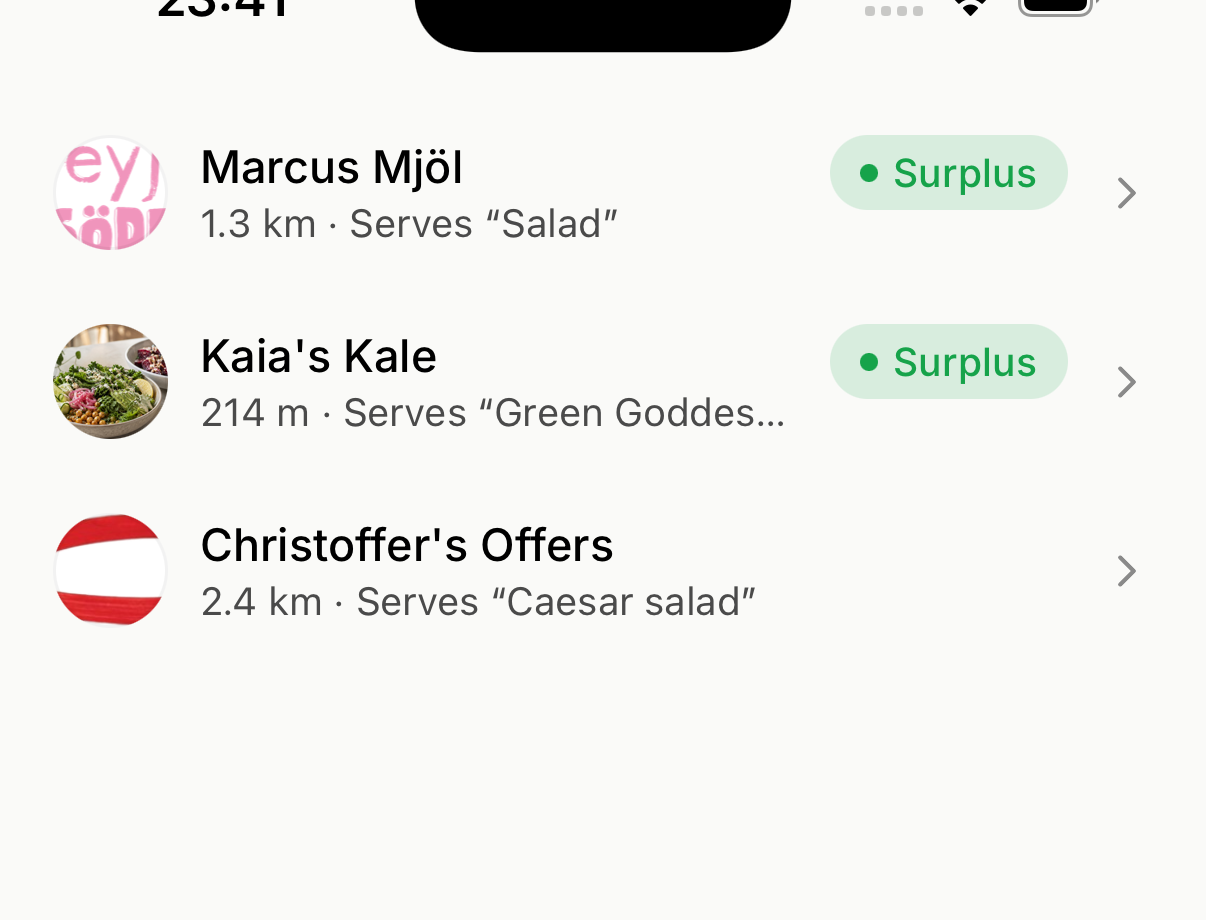
- Enter a location, venue, or food—for example,
salad. - Select a result to see its available offer and pickup details.
Use preferences and filters
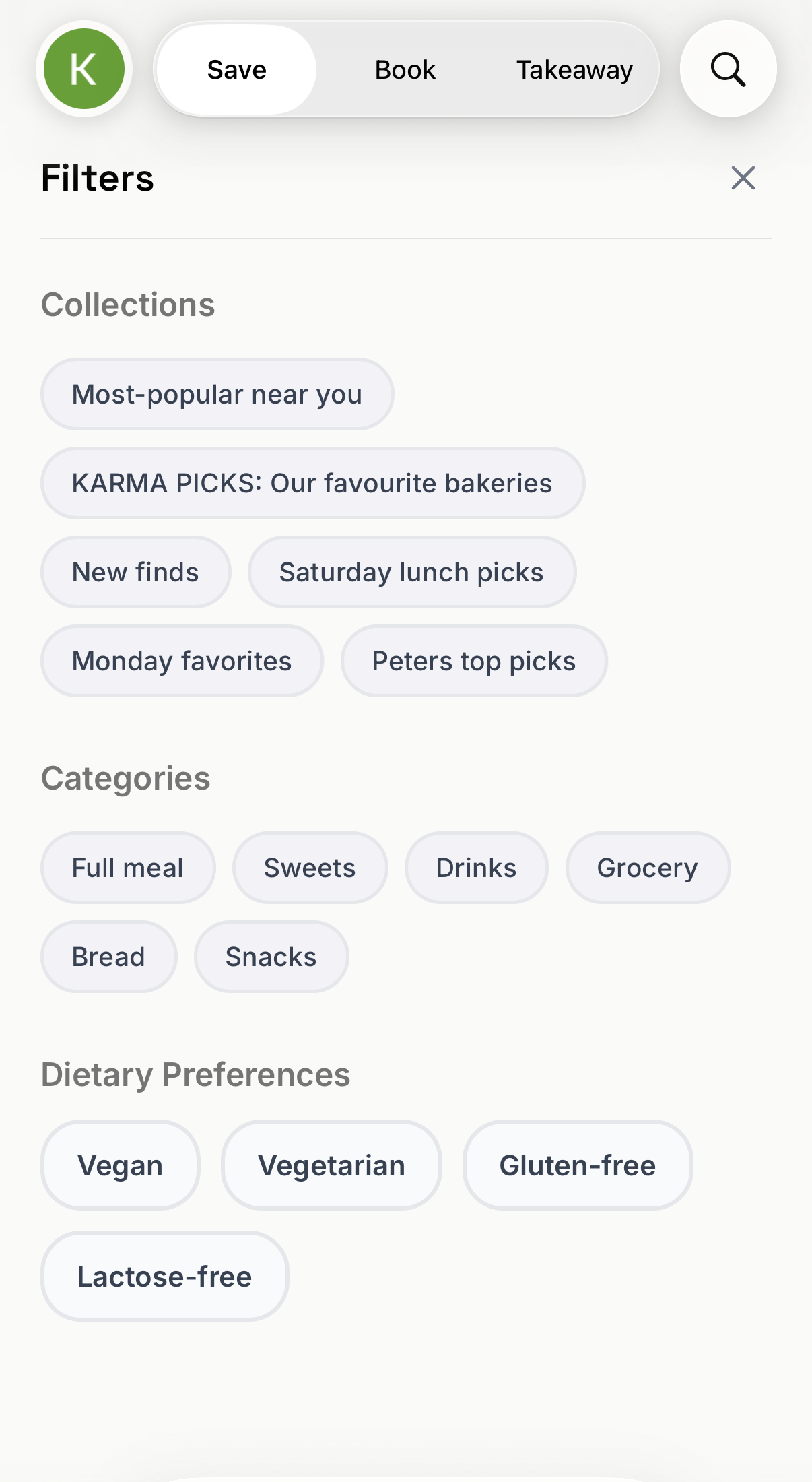
- Select the filter button (sliders) in the bottom-right corner of the map, next to the location arrow. The search screen has the same filter button.
- Under Filters, choose a collection, category, or dietary preference.
- Review the filtered results.
- If the list is empty, select Clear all, then add filters again one at a time.
Always read the item description and ingredients. If you have an allergy, ask the location about ingredients and cross-contact before purchasing.
If the map looks empty
- Move or zoom the map to another area, then select Search on the button that appears above the list. The map does not load new places until you do. If the button says Zoom in, you are zoomed out too far.
- Return to your location and check that Karma has location permission.
- Remove active filters. A dietary preference also keeps the map to a 10 km area until you clear it.
- Check again later. Locations publish surplus at different times.
If an offer clearly ignores an active filter, open Profile → Help & Support → New conversation. Include the filter, location, offer, time, and a screenshot.