Lägg till artikeln i Lager så att uppgifterna om artikeln blir rätt. Använd Menybyggare för att lägga till artikeln i en meny och styra var den visas.
Se den 88 sekunder långa genomgången, eller följ stegen nedan.
Skapa en artikel
- Öppna Artiklar & Meny → Lager i Karma.
- Välj Ny produkt. Karma skapar artikeln direkt och öppnar redigeringsvyn.
- Lägg till en tydlig Titel, en kort Beskrivning för gästen, korrekta Ingredienser och en bra bild.
- Välj Inget lager / Obegränsat, eller välj Använd lager / Begränsat och ange hur många du kan sälja.
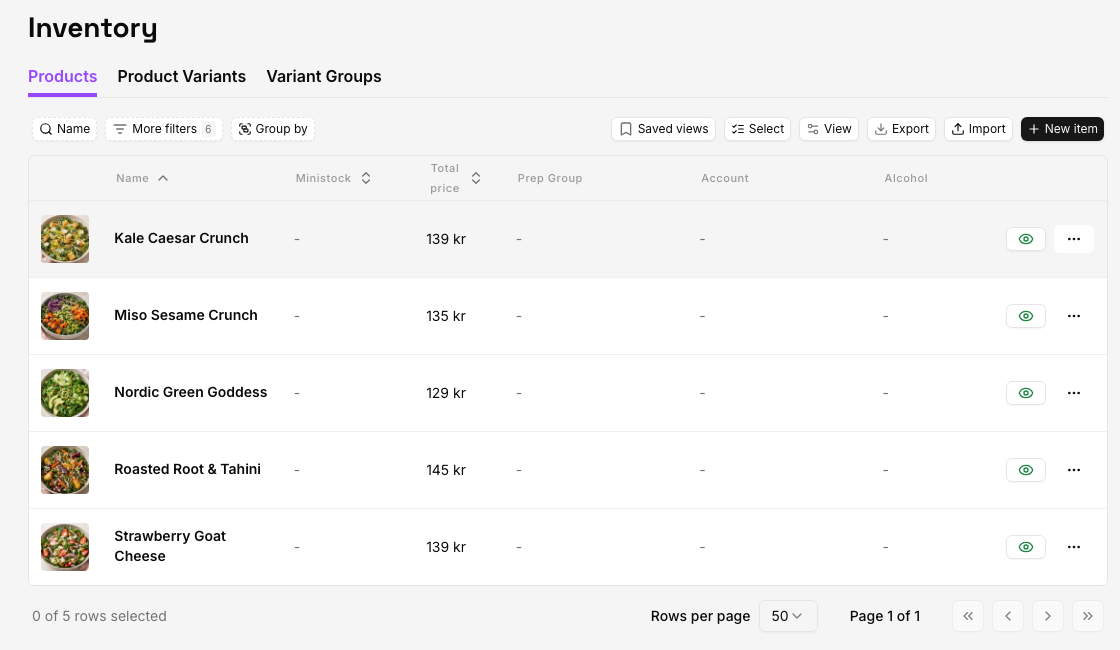
- Fäll ut Förberedelse när köket behöver prepnamn, instruktioner, förberedelsetid, serveringscenter, prepgrupp, KDS-färg eller sorteringsordning.
- Gå igenom Synlighet och välj i vilka kanaler artikeln ska visas.
- Öppna Pris och ange försäljningspris och rätt momssats.
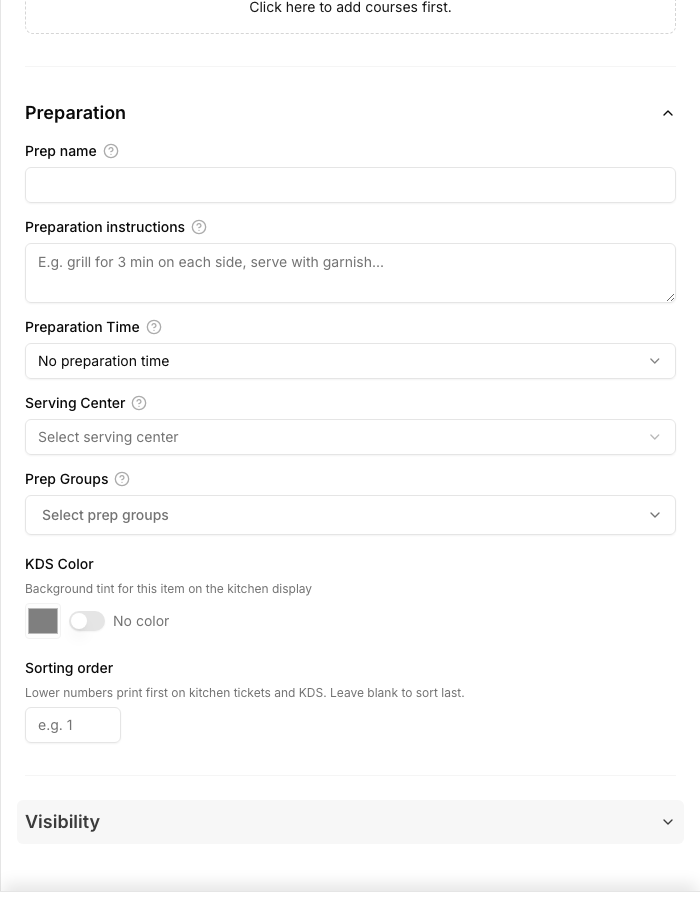
- Öppna Typ & Allergener. Ange artikelkategori, kostmärkningar och alla allergener noggrant.
- Välj Spara.
Om du har valt Ny produkt av misstag, ta bort det tomma utkastet via radens meny i stället för att lämna en namnlös artikel i sortimentet.
Skicka artikeln till köket
Använd Förberedelse bara för uppgifter som personalen behöver under service. Titeln och beskrivningen som gästen ser ska vara lätta att förstå.
- Prepnamn kan vara kortare än titeln som gästen ser.
- Tillagningsinstruktioner beskriver vad som ska göras innan artikeln lämnas ut.
- Förberedelsetid hjälper till med timingen under service.
- Serveringscenter och Prepgrupper styr arbetet till rätt station, skrivare eller köksdisplay.
- Sorteringsordning styr vilka artiklar som visas först på köksbongar och på köksdisplayen; lägre nummer skrivs ut först.
Kontrollera kostmärkningar och allergener
Kostmärkningar och allergener hjälper personal och gäster att förstå artikeln, men de måste stämma med det faktiska receptet. Uppdatera dem när ingredienser eller tillagning ändras.
Lägg in artikeln i en meny
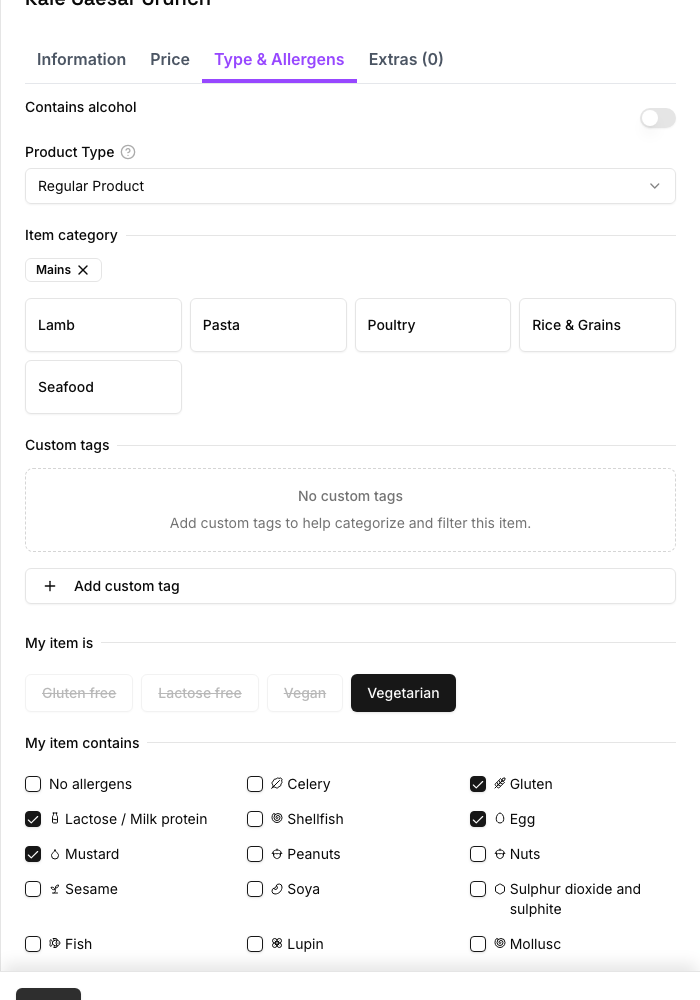
- Öppna Artiklar & Meny → Menybyggare.
- Välj menyn som används i den aktuella beställningskanalen.
- Välj Lägg till produkt.
- Välj artikeln under Produktreferens.
- Lägg till en annan visningstitel eller kassainställningar om det behövs.
- Välj Bekräfta.
- Placera relaterade artiklar i en logisk ordning och kontrollera sedan både QR-vy och POS-vy.
En artikel kan finnas i lagret utan att synas i någon meny. Om gäster eller personal inte hittar den, kontrollera både Synlighet och placeringen i Menybyggaren.
Redigera, dölj, kopiera eller ta bort en artikel
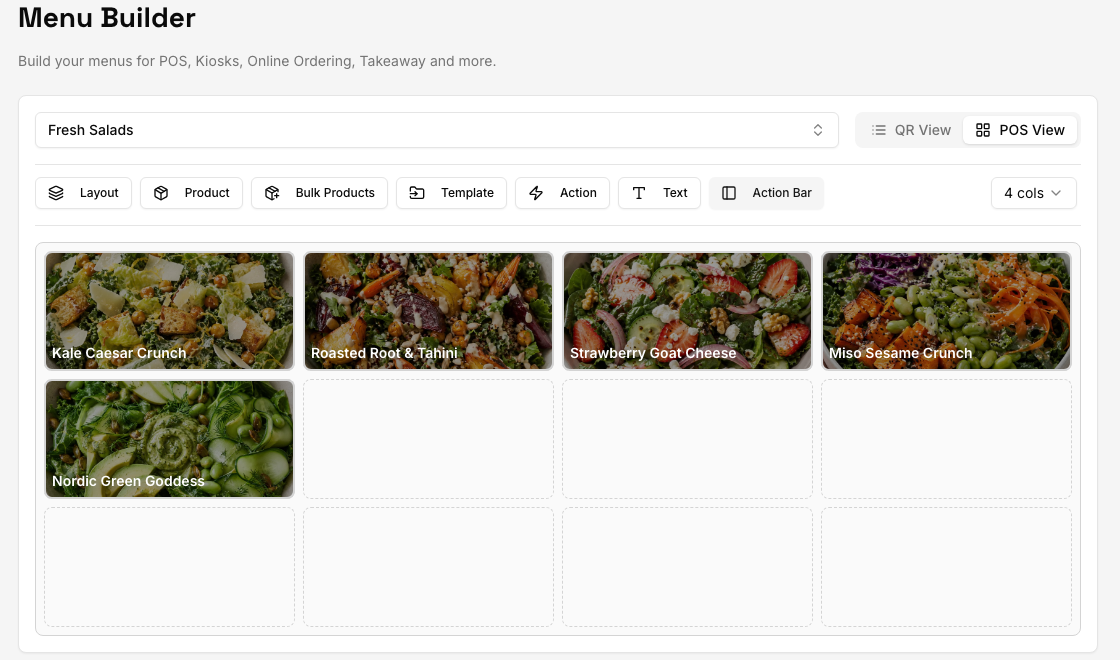
Öppna radens meny i Lager för att redigera, kopiera (Skapa kopia) eller ta bort en artikel. Använd ögonikonen bredvid radens meny för att dölja eller visa den. Dölj hellre en artikel om ändringen är tillfällig eller om artikeln har beställningshistorik. Ta bara bort den när den inte ska användas mer.
Om ett anslutet kassasystem hanterar sortimentet
Fält som hanteras av kassasystemet, till exempel artikelnamn, pris, moms eller lager, ändrar du i det anslutna kassasystemet och synkar sedan via Appar. Karma kan låsa eller skriva över fält som integrationen hanterar.
Om artikeln saknas eller är fel
Kontrollera vald plats, artikelns synlighet, menyplacering, beställningskanal och synkstatus för kassasystemet. Om du fortfarande behöver hjälp, ange plats, artikelns titel och ID, förväntat resultat, faktiskt resultat, berörd meny eller kanal samt en skärmbild när du kontaktar supporten.